 Xero integration
Xero integration help
Everything you need to connect Gennai to Xero, export draft bills with PDF attachments, auto-categorize your spend, and manage multiple Xero organisations, plus how to disconnect cleanly at any time.
Connecting your Xero account
There are two ways to connect Gennai to Xero. Both go through Xero's standard OAuth flow, so your Xero password is never shared with us. Xero handles the sign-in and you grant Gennai access from inside Xero.
How to connect
- From the Xero App Store (recommended for new users): click Get this app on Gennai's Xero App Store listing. You'll be sent to Gennai's dedicated sign-up page, sign in with your Xero credentials, and a Gennai account is created automatically using your Xero email address.
- From an existing Gennai account: sign in to Gennai, open Integrations, and click Connect to Xero. You'll be redirected to Xero to authorise access, then back to Gennai.
What you'll see on the Xero consent screen
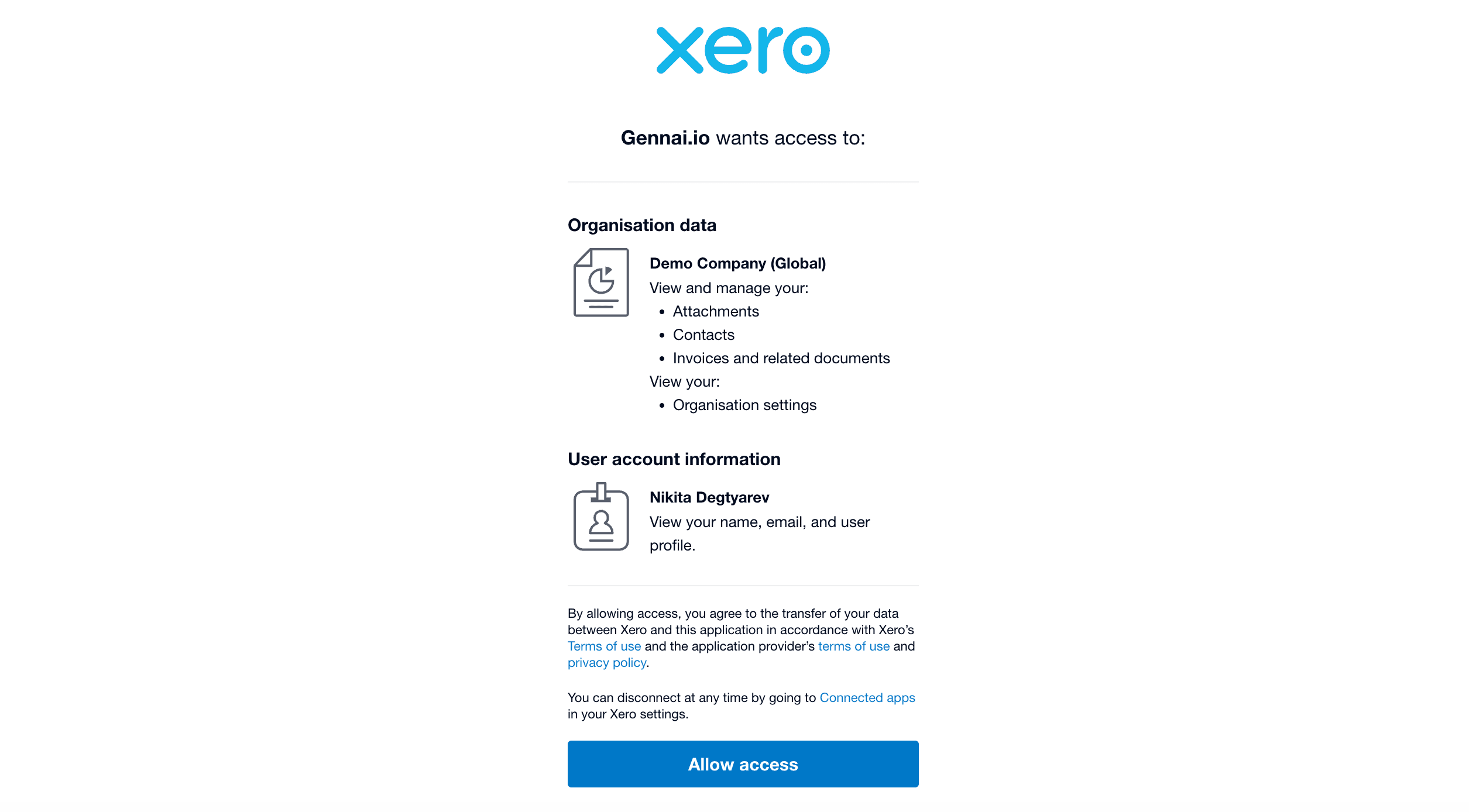
Xero displays an "Allow access" page listing the permissions Gennai is asking for. If you manage more than one Xero organisation, you'll see a dropdown to choose which organisation to connect. Pick the one whose bills you want Gennai to file.
What Gennai will not touch
Gennai only asks Xero for what it needs to create supplier Bills and keep them synced with your Chart of Accounts. It never asks for access to your bank feeds, payroll, customers, or sales invoices. You can review or revoke Gennai's access at any time from Xero by visiting Settings > Connected apps.
After connecting
The connection appears as active in your Integrations panel. In the background, Gennai runs a one-off sync to read your Chart of Accounts and recent supplier coding history. This is what powers the auto-categorization feature described in the next article. The sync usually finishes in under a minute for a typical Xero organisation.
Exporting bills to Xero
When you export an invoice from Gennai, we create a draft Bill in your Xero organisation with the original PDF attached. You stay in control: every Bill lands as a draft for you to review and approve inside Xero.
One direction sync
Gennai uses one direction sync: data flows from Gennai to Xero, never the other way. We never modify bills in Xero that are already there. We only create new draft bills for invoices you've exported through Gennai.
If you edit a bill inside Xero (change the account code, add tracking categories, mark it as approved), Gennai will leave your changes alone. The flow is strictly: Gennai creates a draft, then you review and finalise it in Xero.
What we create in Xero
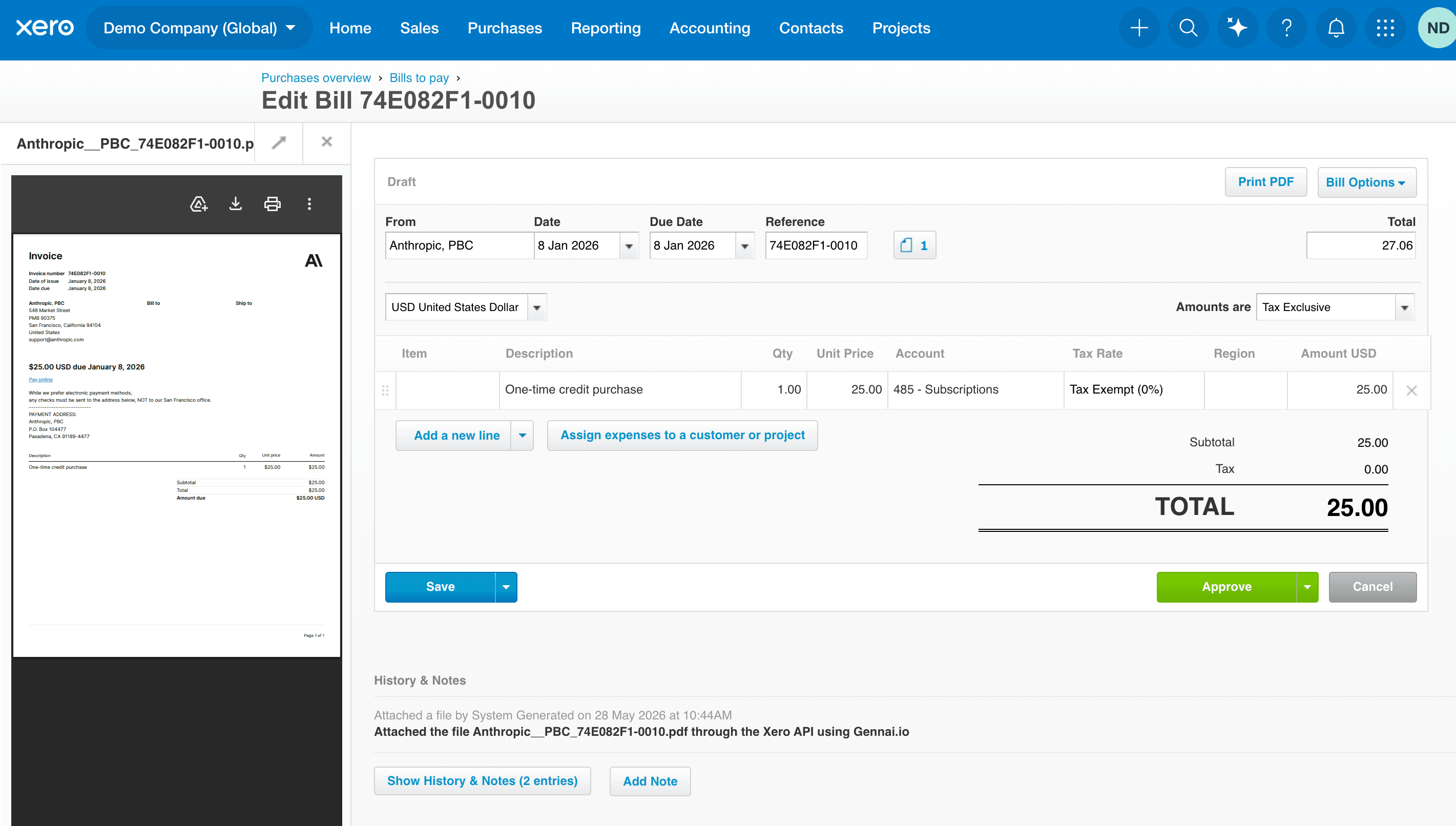
Each Gennai invoice becomes one Xero Accounts Payable Bill (type ACCPAY), status Draft. The fields on the Bill are filled in from what we extracted from your invoice: the supplier, date, amount, currency, invoice number, and description.
Field mapping
Here's how an extracted invoice maps onto the resulting Xero Bill. The sample below uses generic data for illustration.
Xero Bill (Draft)PDF attachment
The original PDF that produced the invoice is uploaded as an attachment to the Bill in Xero. This means your accountant can open the source document directly from Xero. No chasing emails, no downloading from Gennai.
Idempotency: no duplicate bills
Gennai tracks every export, so re-exporting the same invoice doesn't create a duplicate Bill. If the original draft is still unapproved in Xero, we update it in place. If you've already approved the Bill in Xero, Gennai leaves it untouched, consistent with our one-direction policy.
Auto-categorizing your invoices
Gennai can suggest the correct expense account for Bills it sends to Xero, so your accountant doesn't have to re-code suppliers we already recognise. The suggestion is based on what already lives in your Xero account: your Chart of Accounts and your past supplier coding.
How Gennai learns your Chart of Accounts
When you connect Xero, Gennai does two read-only things:
- Reads your full Chart of Accounts so we know which expense accounts exist and their codes.
- Reads your recent supplier coding history (which account each supplier has been coded to in past bills) to learn your conventions.
We never write to either of these. If you rename an account or re-organise your chart inside Xero, Gennai picks up the change on its weekly background sync.
Suggestion authority (highest wins)
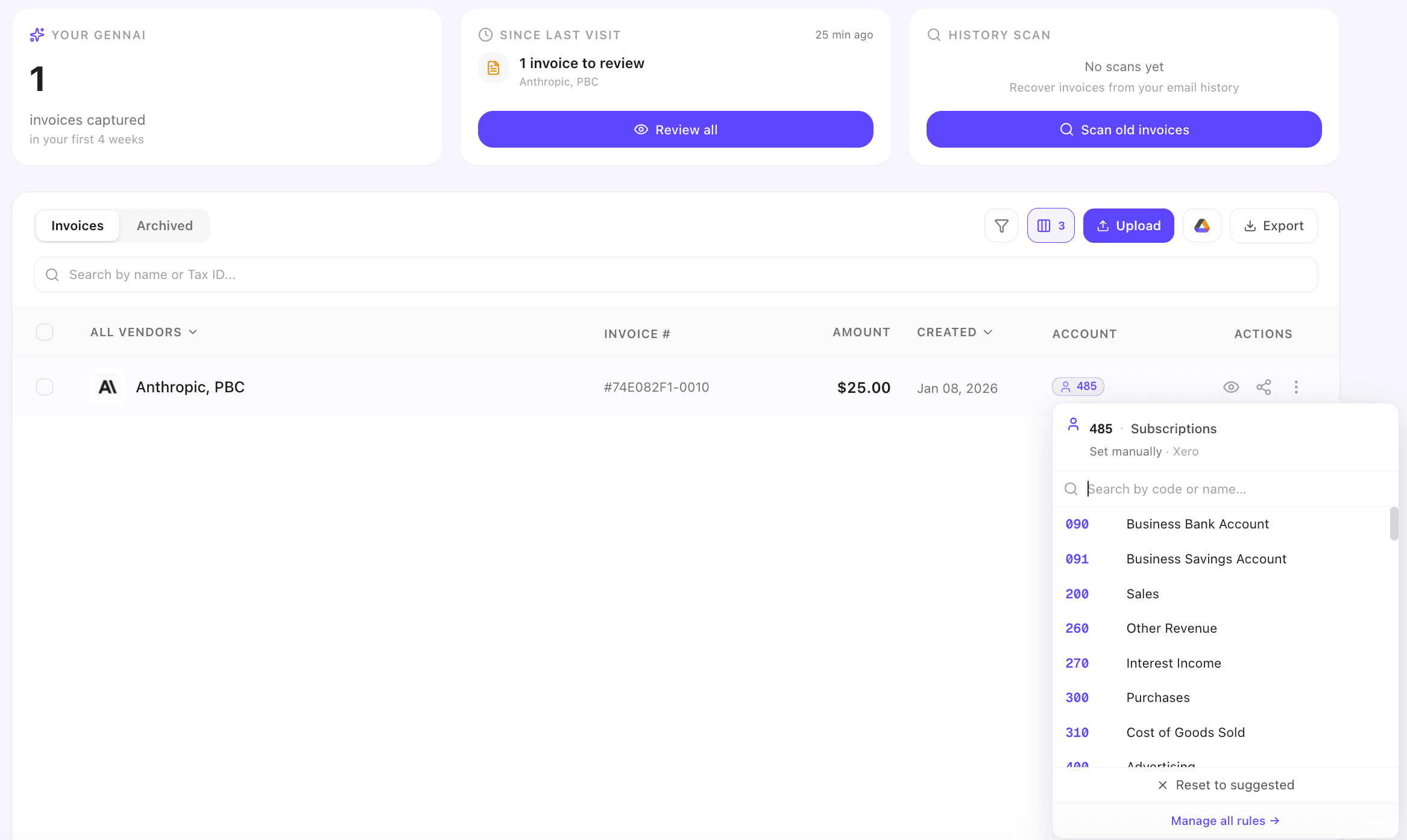
- Supplier's Default purchases account code set on the Contact in Xero . This always wins. If your accountant has explicitly pinned a default account on a Xero contact, we honour it as the source of truth.
- Learned from your past Xero bills . We look at the most recent bills for that supplier and use the account code they were coded to most often.
If neither signal exists yet (for example, when you're importing a brand-new supplier for the first time), Gennai creates the Bill in Xero without a suggested account code. You can assign one in Xero before approving the draft, and Gennai will learn the supplier's pattern for next time.
Bills go as Draft: you stay in control
The suggested account code is just that: a suggestion. Every Bill lands in Xero as a draft, so you can edit the code before approving (or remove it entirely if you'd rather code from scratch). Reinforcing the rule from Article 2: we never modify bills in Xero that you've already touched. We only ever pre-fill the draft we created.
Working with multiple Xero organisations
If you manage several companies in one Gennai workspace, you can connect each one's Xero organisation separately. Gennai routes each invoice to the right Xero based on who the invoice is billed to.
One Gennai account, multiple Xero organisations
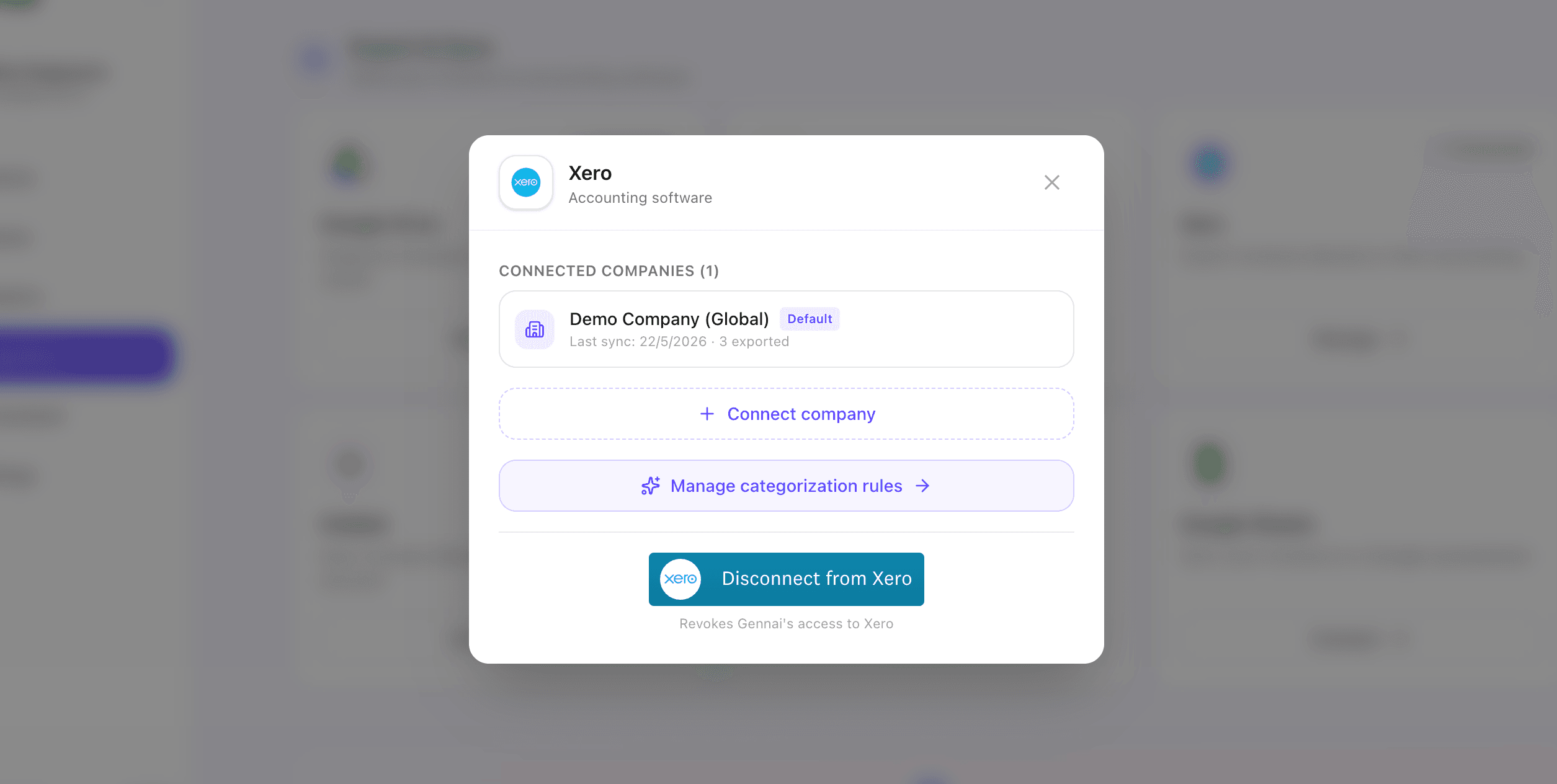
From the Integrations panel, add additional Xero organisations by clicking Connect company. Each connection goes through its own Xero consent flow and is treated as a separate destination, so a Bill exported for company A never lands in company B's Xero by mistake.
How invoices are routed automatically
When Gennai extracts an invoice, we look at the buyer (who the invoice is billed to) and match it against your connected Xero organisations in this order:
- Buyer tax ID: if the invoice's billed-to tax ID matches one of your connected organisations, we route the invoice there.
- Buyer name and aliases , learned from your past corrections (e.g. "Acme Holdings Ltd" and "Acme HQ" recognised as the same company).
- AI-assisted match against the list of your connected organisations.
- Inbox tendency: which email inbox the invoice was scanned from, used as a fallback when the buyer's identity is unclear on the document.
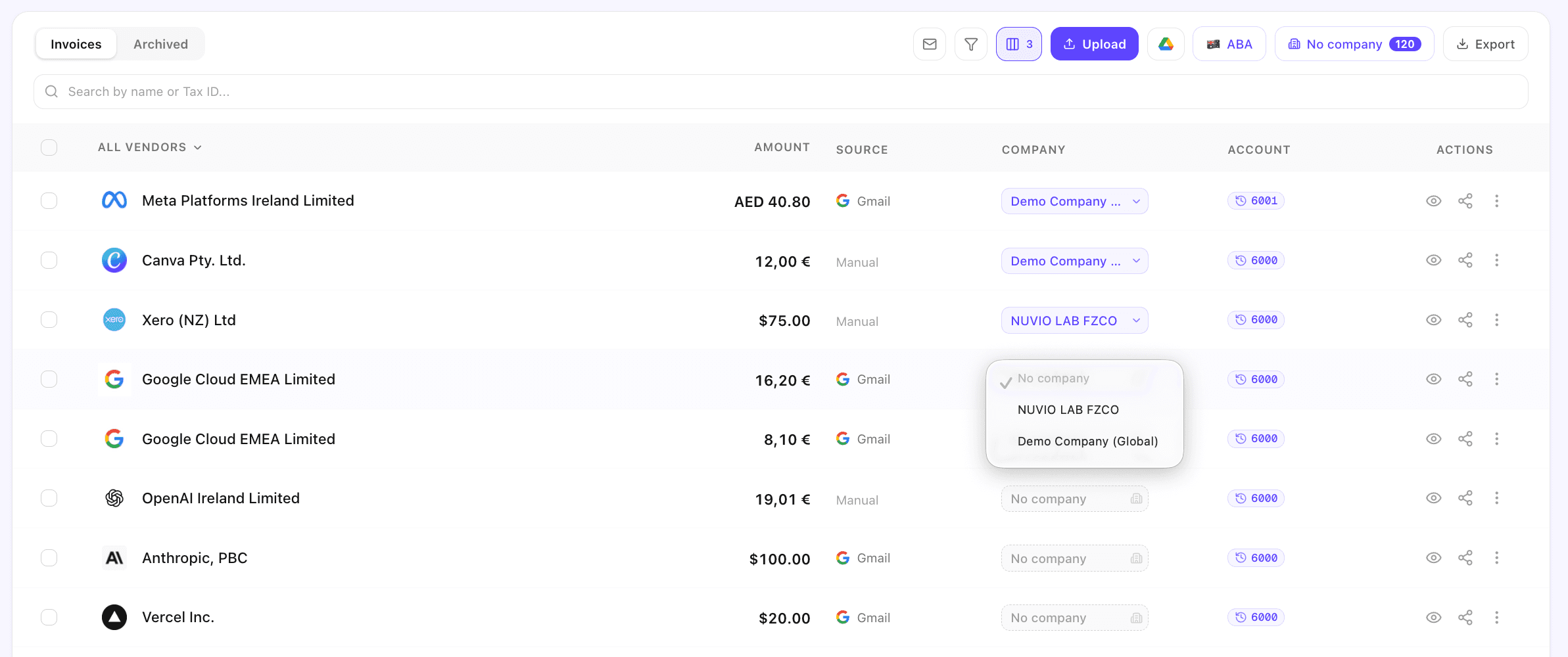
If none of these reach a confident match, the invoice waits in No company for you to pick the right one manually.
Manual override and learning
You can change the company on any invoice, individually or in bulk from the invoice table. When you correct a routing decision, Gennai learns the buyer identity (tax ID or name alias) so future invoices from the same supplier and buyer combination route correctly without manual intervention.
Export in one click, per-company breakdown
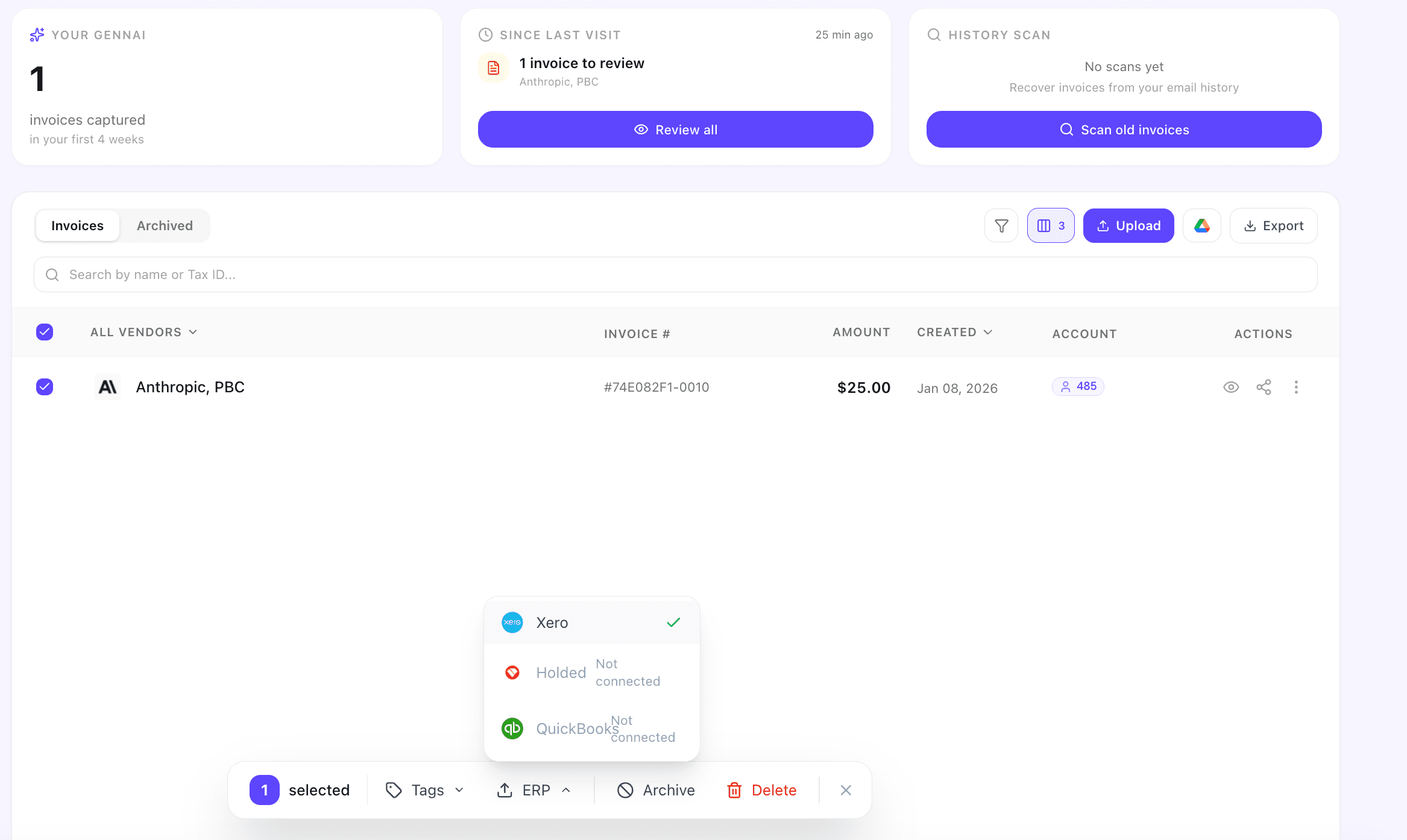
When you click export, Gennai groups your selected invoices by destination Xero organisation and sends each batch to the right place. The export modal shows a per-company breakdown so you can see exactly how many Bills will land in each Xero account before you confirm.
Disconnecting and data removal
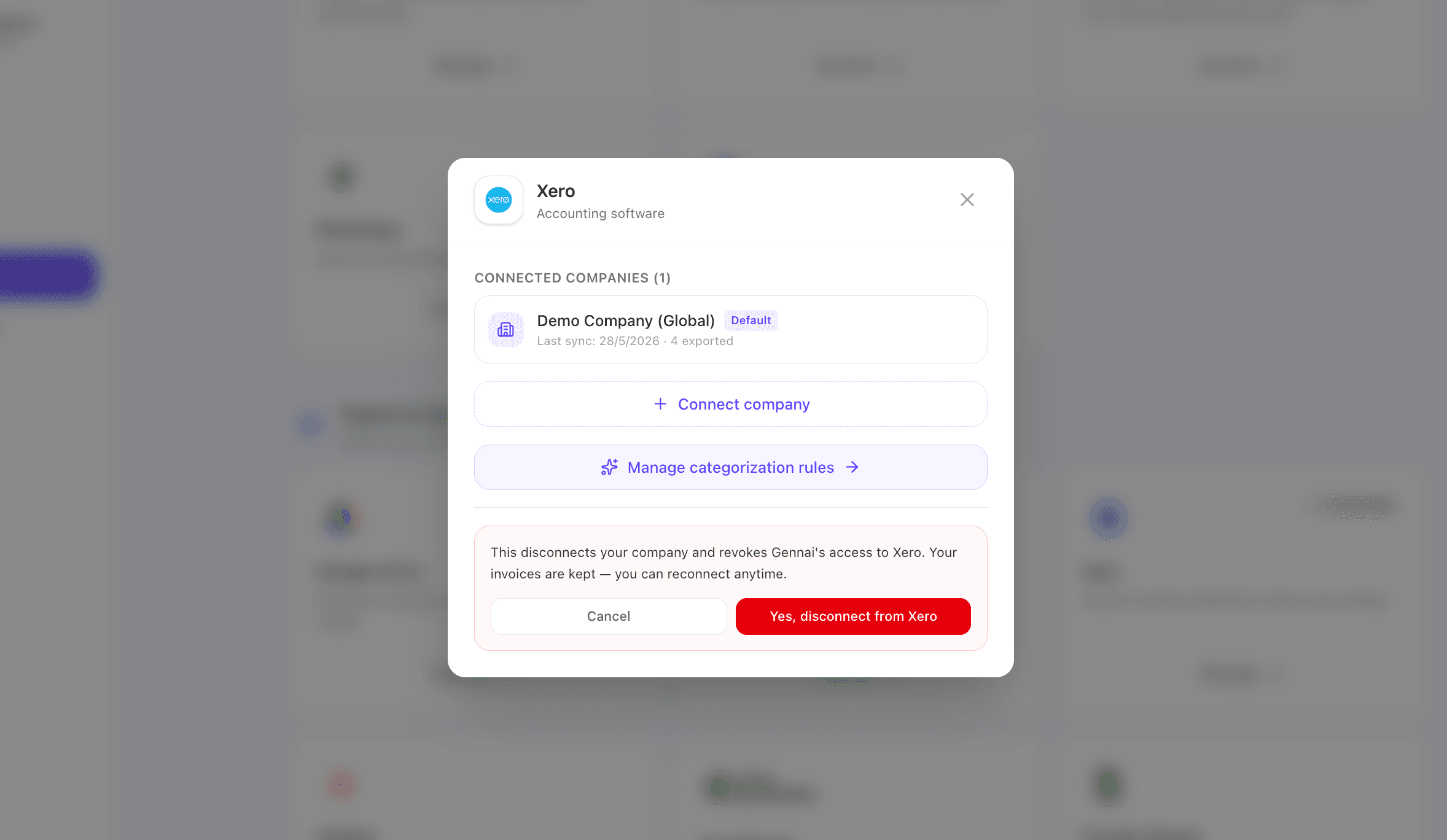
You can disconnect Xero from Gennai at any time. We've designed the disconnect flow to be clean and immediate. Your tokens are purged on our side, and you can also revoke Gennai's access from Xero directly for full removal.
Disconnect from Gennai
Inside Gennai, open Integrations, find your Xero connection, and click Disconnect. The moment you confirm:
- Your OAuth access and refresh tokens are purged from our database immediately.
- The connection is marked inactive and stops receiving Bills from new exports.
- Already-exported Bills stay in your Xero. They're yours; we don't delete them.
- Cached Xero data such as your Chart of Accounts is kept alongside your Gennai account so reconnecting is fast. You can request full deletion at any time (see "Deleting your data" below).
Revoke from your Xero account
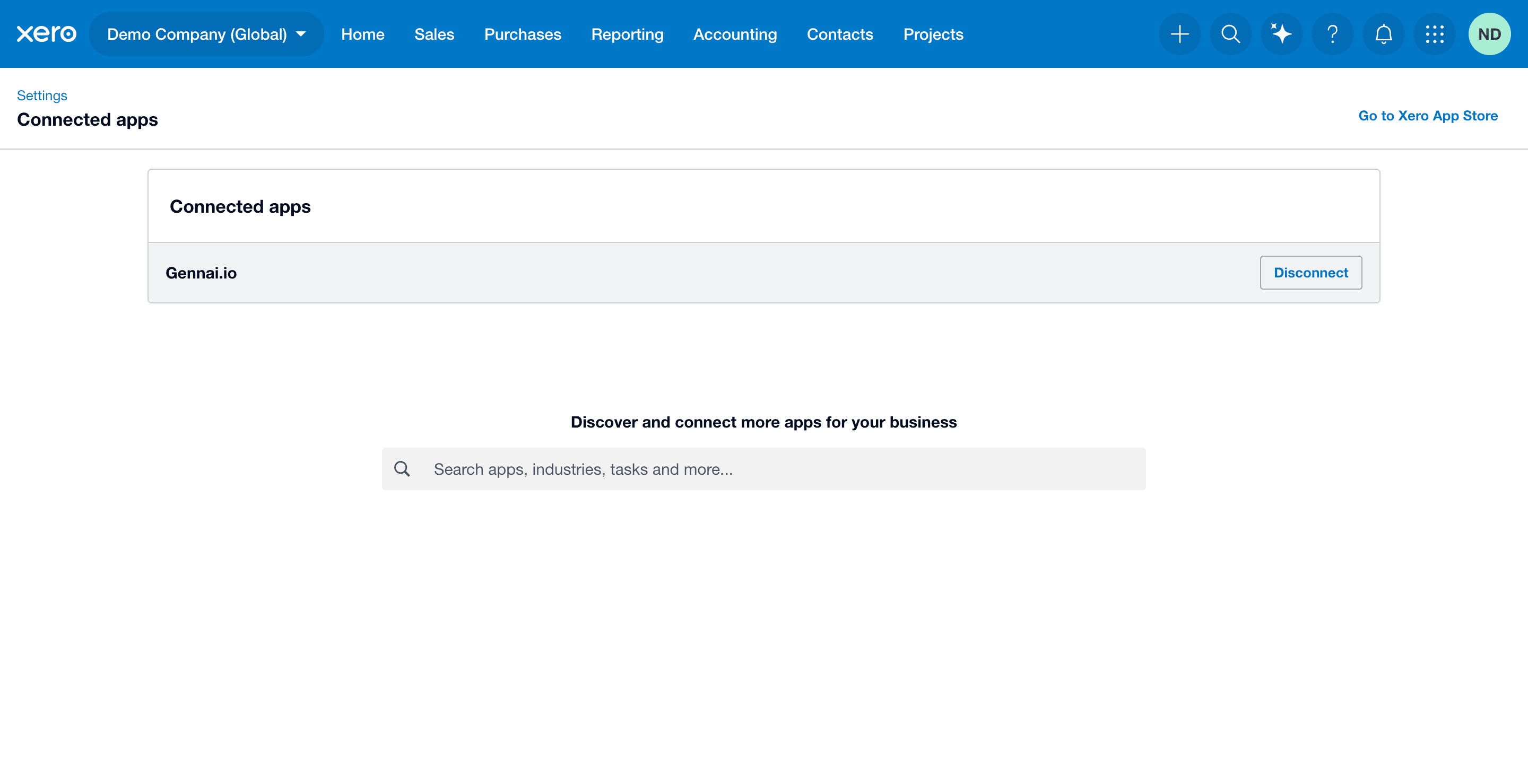
For a complete two-sided removal, you can also revoke Gennai's access from inside Xero:
- Sign in to my.xero.com.
- Open Settings → Connected apps.
- Find Gennai in the list and click Disconnect.
This invalidates any cached tokens on Xero's side and severs the authorisation from your Xero account entirely.
Token storage and security
All OAuth tokens encrypted at rest using AES-256-GCM. Tokens are decrypted only in memory at the moment a request is being made to Xero, and are never written to logs, never shared with third parties, and never used outside of providing the Gennai-to-Xero integration described on this page.
Refresh tokens are rotated automatically by Xero on every refresh cycle; the new token is re-encrypted before being stored. All traffic between Gennai and Xero is over TLS.
Deleting your data (GDPR)
If you want every trace of your data removed, you have two options:
- Self-service: in Gennai, go to Settings → Delete account. This removes all your organisation's data, including invoice records, PDFs, and Xero export history.
- By email: write to privacy@gennai.io. We process deletion requests within 30 days. Some billing records may be retained for legally-required financial periods. See our privacy policy for the full picture.
Either route disconnects all integrations automatically as part of the deletion. You don't need to manually disconnect Xero first.
Reconnecting later
If you change your mind, you can reconnect Xero at any time from the Integrations panel. Bills already in your Xero are preserved. Gennai's one-direction policy means we won't touch them on reconnection.
Xero is a trademark of Xero Limited. Gennai Invoice Manager is not affiliated with or endorsed by Xero Limited.