
How Gennai Works: Complete Product Walkthrough
Full walkthrough of how Gennai works: email connection, AI invoice extraction, dashboard, analytics, integrations, and export. Setup takes under two minutes.

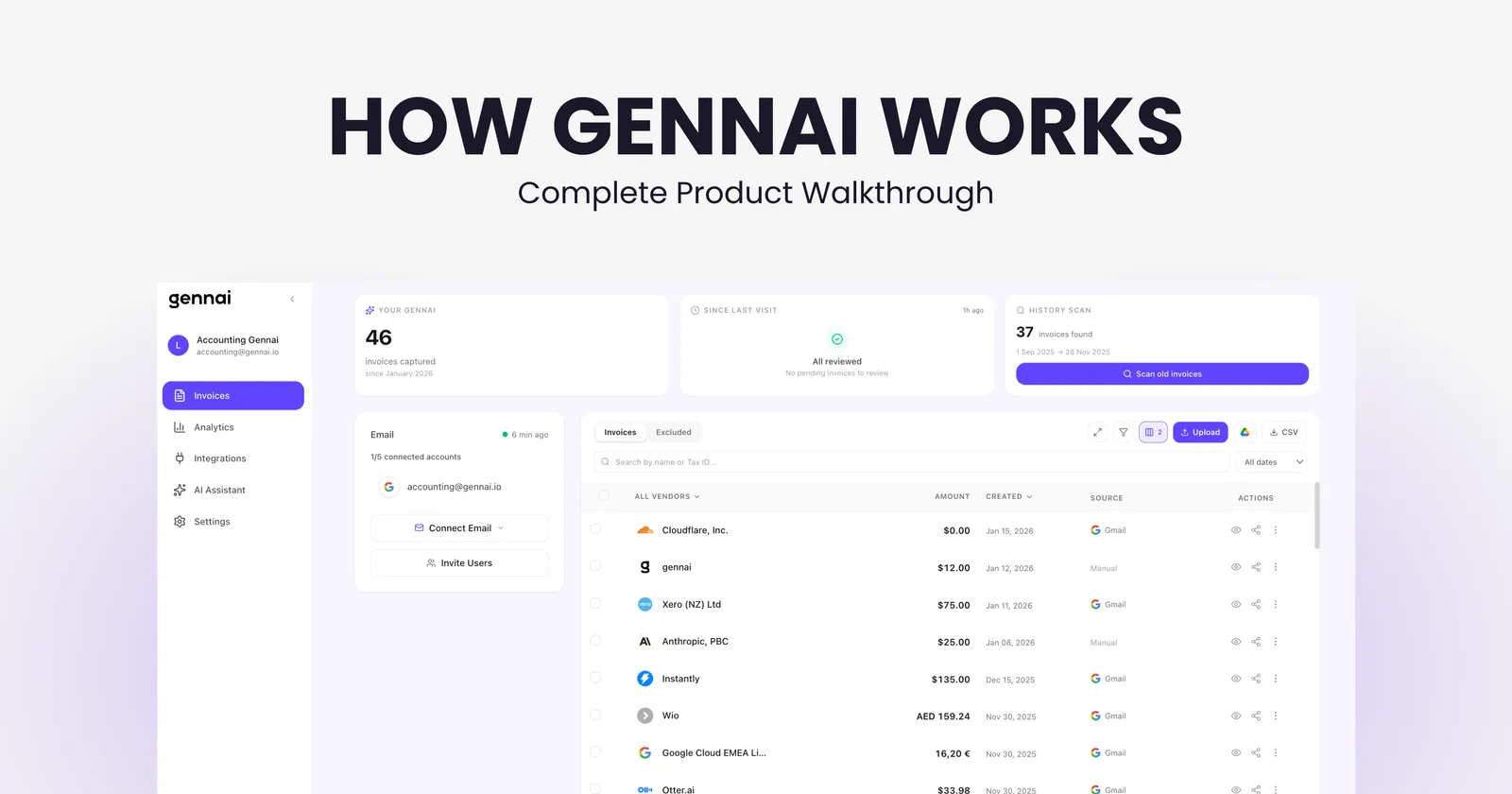
Gennai is an AI-powered invoice management tool that connects to your email inbox, finds every invoice automatically, and sends the extracted data to your accounting software. No manual downloading, no copy-paste, no chasing attachments.
This walkthrough goes through every part of the product: how setup works, what the AI does with each invoice, what you can see in the dashboard, how exports and integrations work, and the features that most users discover only after a few weeks of using it.
If you prefer to watch rather than read, the video at the top of this page covers the full product live. Everything below is the written reference version.
What Gennai does in one sentence: connect your Gmail, Outlook, or IMAP inbox, and Gennai's AI finds every invoice, extracts the data, and syncs it to Xero, QuickBooks, Holded, Google Drive, or Google Sheets automatically. Setup takes under two minutes.
Step 1: Connecting Your Email
Gennai supports Gmail, Outlook, and any IMAP-compatible email provider. The connection uses OAuth 2.0, which means you authorize access through Google or Microsoft directly. Gennai never sees your password. The access is read-only: Gennai can read email attachments identified as invoices, but cannot send emails, delete messages, or modify anything in your inbox.
You can connect multiple email accounts from the same dashboard. Invoices arriving across different inboxes (your main account, an accounting@ address, a shared team inbox) all feed into the same unified view. There is no limit on the number of connected accounts.
Once connected, Gennai starts scanning immediately. The first scan covers your current inbox. You can also trigger a retroactive scan to pull invoices from any past date range, including your full inbox history if needed.
WhatsApp and Telegram: if you receive invoices outside email (paper receipts, invoices from suppliers who use messaging apps), you can submit them directly via WhatsApp or Telegram. Send a photo or PDF to Gennai's bot and the AI processes it the same way as an email attachment. It lands in the same dashboard alongside your email invoices.
Step 2: How the AI Extracts Invoice Data
Every hour, Gennai's automated scanner checks your connected inboxes for new messages. When it finds an email that contains an invoice, whether as a PDF attachment, an image, or embedded directly in the email body, it sends it through the extraction pipeline.
The AI extracts the following fields from every invoice:
| Field | What Gennai extracts |
|---|---|
| Vendor name | The supplier's company name, matched against your existing vendor list |
| Invoice number | The unique identifier on the document |
| Invoice date | The date the invoice was issued |
| Due date | When payment is expected, if stated |
| Currency | Detected automatically, including multi-currency invoices |
| Subtotal, tax, and total | Each line extracted separately |
| Line items | Individual products or services, quantities, and unit prices |
| Tax ID / VAT number | Vendor and buyer tax identifiers where present |
Gennai also runs automatic deduplication. If the same invoice arrives twice (forwarded, re-sent by a supplier, or present in two connected inboxes), the system detects it using content hashing and prevents the duplicate from appearing twice in your records.
For a deeper look at what is happening technically during extraction, the article on how AI actually reads invoices explains the computer vision, OCR, and language model layers involved in the process.
Step 3: The Invoice Dashboard
Once invoices are extracted, they appear in the unified dashboard. This is the central workspace for your team: a searchable, filterable list of every invoice across all connected inboxes.
Search and filters
You can search by vendor name or tax ID, and filter by date range, amount, currency, or custom tags. This makes it straightforward to pull up all invoices from a specific supplier for a quarter, or find every invoice above a certain amount, without scrolling through lists.
Custom tags
Invoices can be tagged with any label you define: department, project, cost center, approval status, or anything else relevant to your workflow. Tags carry through to exports, so your CSV or accounting integration reflects the same categorization.
Custom classification rules
Beyond manual tagging, you can set up rules that automatically classify invoices when they arrive. A rule might say: any invoice from a specific vendor gets tagged as 'Marketing', or any invoice above a certain amount gets flagged for approval. Rules run automatically on every new invoice without any manual action.
Bulk operations
You can select multiple invoices and perform batch actions: export them together, tag them, push them to an accounting integration, or download as PDF. This is useful at month-end or quarter-end when you need to process a large set at once.
Step 4: Analytics and Spending Insights
The analytics section of the dashboard shows spending patterns derived from your extracted invoices. Because Gennai has structured data from every invoice (vendor, amount, date, currency, category), it can surface patterns that would otherwise require manual spreadsheet work.
What you can see in analytics:
- Total spend by vendor, ranked by volume over any time period
- Spend over time: monthly or quarterly trend view across all vendors
- Spend by currency, useful for businesses with international suppliers
- Invoice volume: how many invoices are arriving and from how many vendors
- Tagged spend: total amounts grouped by your custom tags (department, project, etc.)
This gives finance teams a real-time view of AP activity without exporting data to a separate tool. Instead of building a spend report manually at the end of the month, the data is already there, updated with every new invoice that lands in the inbox.
Step 5: The AI Assistant
Gennai's AI assistant is not a chat interface. It is an instruction layer that sits on top of your invoice workflow and acts automatically when invoices arrive. You define the rule once, and the assistant executes it every time the condition is met, without any manual input.
The logic is straightforward: if a condition is true, take an action. You write the instruction in plain language and the assistant applies it to every new invoice from that point forward.
Examples of what you can instruct it to do:
- If an invoice arrives from Google, tag it as "Marketing"
- If an invoice arrives from Carrefour, archive it
- If an invoice is above $1,000, flag it for review
- If the vendor is Stripe, tag it as "Payment processing" and export to Google Sheets
- If an invoice has no VAT, tag it as "VAT exempt"
This is different from the manual classification rules in the dashboard. The AI assistant handles more flexible, context-aware logic: it understands vendor names, amounts, content, and combinations of conditions. The manual rules cover straightforward tagging. The assistant covers the nuanced cases where you need the system to make a judgment call.
The result is that by the time an invoice appears in your dashboard, it is already classified, tagged, and routed according to your instructions. Your team sees organized data, not raw extractions.
Step 6: Team Members and Accountant Access
Gennai is built for collaboration from the start. On the Growth and Business plans, you can invite team members with role-based permissions and add an external accountant with a dedicated access role.
Accountant portal
The accountant access role gives a separate login with read and export permissions. Your accountant can log in, review invoices, apply filters, and export what they need without accessing account settings, billing, or email connections. This removes the back-and-forth of emailing PDFs to your bookkeeper at month-end: they just log in and pull what they need.
Secure sharing via links
You can also share specific invoice collections via secure links, without requiring the recipient to have a Gennai account. This is useful for one-off sharing with auditors, external reviewers, or clients.
Audit trail
Every action in the account is logged: who exported what, when invoices were added, and any changes made to invoice data. The audit trail is available for the full account history and can be exported.
Step 7: Integrations and Export
Getting invoice data out of Gennai is where the automation pays off. Once the AI has extracted and organized everything, you push it wherever your workflow needs it.
| Destination | How it works |
|---|---|
| Xero | One-click push of selected invoices as bills. Vendor matching, tax handling, and currency conversion included. |
| QuickBooks | Direct export of extracted invoice data as expense entries. Batch processing supported. |
| Holded | Native integration for pushing invoice data directly into Holded's accounting module. |
| Google Drive | Automatic sync of invoice PDFs into organized folders by date or vendor. |
| Google Sheets | Export structured invoice data (all fields) to a connected spreadsheet, updated automatically. |
| CSV / XLSX | Download any selection of invoices as structured CSV or XLSX files for import into any system. |
Plans and Pricing
Gennai has a free plan and three paid tiers. All plans include AI extraction, WhatsApp and Telegram submission, and CSV/XLSX download. Google Drive sync and Google Sheets export are available on the paid tiers.
| Plan | Price | Invoices/mo | Email accounts |
|---|---|---|---|
| Free | $0 | 10 | 2 |
| Starter | $12 | 75 | 5 |
| Growth | $29 | 250 | 15 |
| Business | $79 | 750 | 50 |
Security and Data Handling
Gennai is GDPR compliant and holds CASA Tier 2 certification through the App Defense Alliance, which validates conformance with recognized cloud application security frameworks. All data is encrypted at rest using AES-256. Email connections use OAuth 2.0 only: read-only access to attachments, no password storage, no ability to send or delete emails.
Gennai does not use invoice data to train AI models. Your financial documents are used solely to provide the service. You can delete your data at any time from account settings or by contacting support. The full privacy and security breakdown is covered in the invoice data security guide.
Getting Started
The free plan includes 10 invoices per month with no time limit and no credit card required. Setup takes under two minutes: create an account, connect your Gmail or Outlook via OAuth, and Gennai starts scanning immediately. If you want to pull in historical invoices, trigger the retroactive scan from the dashboard after connecting.
For teams deciding between Gennai and other tools in this category, the invoice management software buyer's guide covers the full evaluation framework. And for a direct comparison with Tailride, one of the closest alternatives, the Gennai vs Tailride comparison covers where the two products overlap and where they differ.
Ready to automate your invoices?
Start extracting invoices from your email automatically with Gennai. Free plan available, no credit card required.
Start FreeRelated Articles
Gennai Pricing Explained: Is It Worth the Cost?
Every Gennai plan explained line by line, with a clear framework to decide whether the subscription cost makes sense for your invoice volume and workflow.
GuideGennai vs Dext: AI-Powered Invoice Extraction Compared
Gennai vs Dext compared feature by feature. See how email-first invoice extraction stacks up against Dext's full bookkeeping automation platform in 2026.
GuideGennai vs Tailride: Honest Comparison for 2026
Gennai vs Tailride compared feature by feature. See where they overlap, where they differ, and which invoice automation tool fits your workflow in 2026.