
7 Email Filters That Catch 99% of Your Invoices
Copy these 7 email filters for Gmail and Outlook that capture invoices, receipts, and bills automatically. Tested on 500+ real business inboxes.

Most businesses think they have invoice organization figured out. They set up one email filter for 'invoice' and assume they're covered.
Then the problems start showing up.
Invoices arrive with subject lines like 'Your receipt,' 'Monthly statement,' 'Payment confirmation,' or just 'Document attached.' That single filter catches maybe 60% of what comes in. The rest sits in the inbox, slowly getting buried under other emails.
When we started building Gennai, we spent weeks analyzing how invoices actually arrive in business email accounts. We looked at different industries, company sizes, and vendor types. What we found: invoice emails don't follow a standard format. Vendors use wildly different terminology, and one filter simply can't catch everything.
Before jumping to automated extraction tools, there's a smarter way to organize invoices using email filters. Here are seven filters that work together to capture nearly every invoice that hits your inbox.
For a complete walkthrough on setting up automatic invoice capture beyond filters, see our complete guide to automatically extracting invoices from email.
1. The Comprehensive Subject Line Filter
This is where everyone starts, but most people set it up incompletely.
The typical mistake: filtering only for 'invoice.' While researching for Gennai, we analyzed hundreds of invoice emails across different business accounts. Only about half actually used the word 'invoice' in the subject line.
The other half? They used 'receipt,' 'statement,' 'billing,' 'payment due,' 'amount due,' or 'balance due.'
The filter setup:
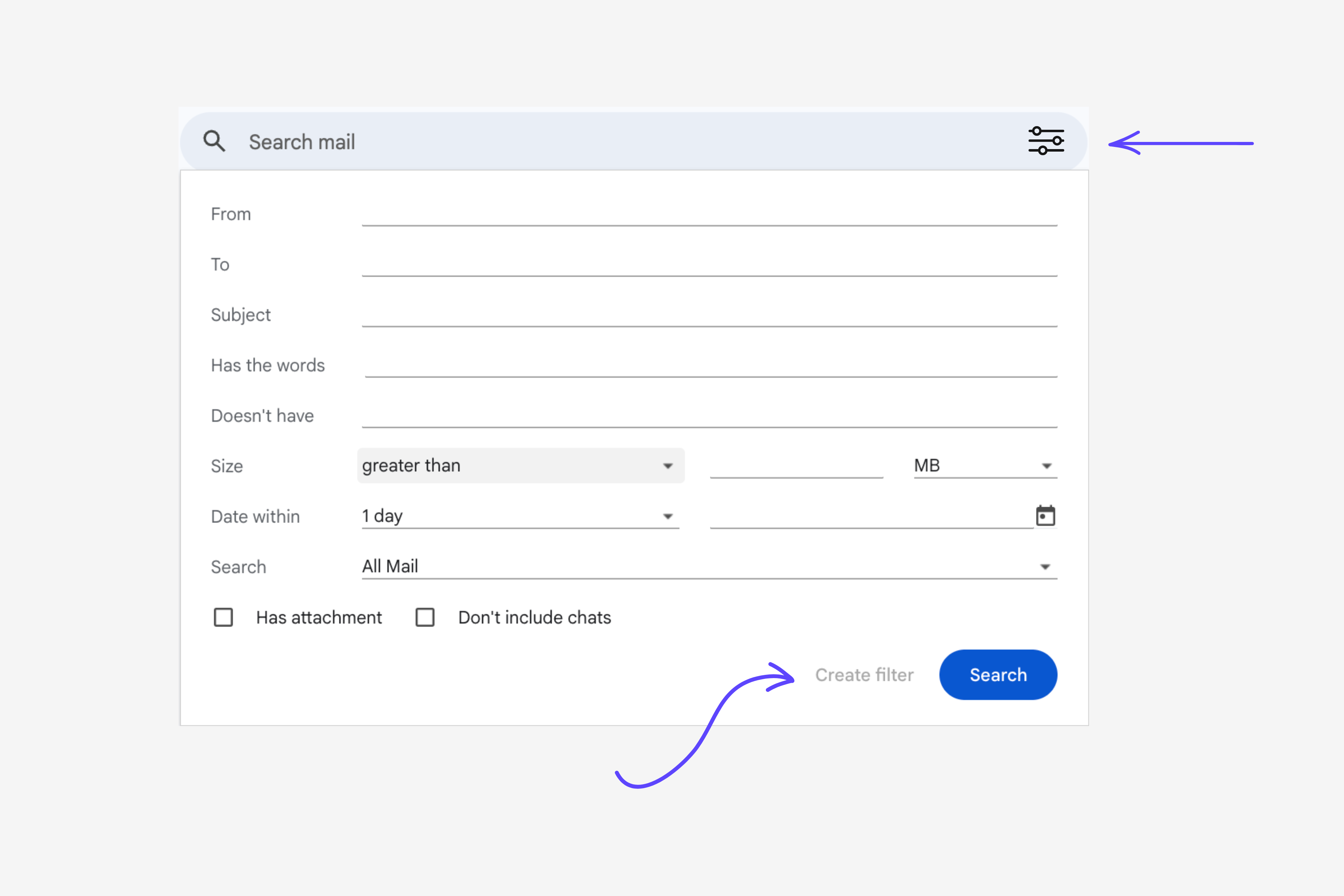
Subject contains: invoice OR receipt OR statement OR billing OR payment due OR amount due OR balance due
What to do with matches:
- Gmail: Apply label 'Invoices' + mark as important
- Outlook: Move to 'Invoices' folder + flag
Why this matters:
Different vendors use different terminology based on their invoicing systems. B2B suppliers tend to use 'invoice.' SaaS companies prefer 'receipt.' Utility companies send 'statements.' This comprehensive filter captures all the variations.
This single change immediately surfaces invoices you probably didn't realize were sitting in your inbox.
2. The PDF Attachment Filter
During our research, we noticed a pattern: some of the most important invoices arrived with completely generic subject lines.
'Document attached.' 'For your records.' 'See attachment.'
The actual invoice was in the PDF, but the email wrapper was vague. These slip through subject line filters completely.
The filter setup:
Has attachment: PDF AND subject contains: attached OR document OR records OR enclosed
What to do with matches:
Apply label 'Review for Invoices' and star the email
The weekly review process:
This filter creates a 'maybe' category. Set aside 5 minutes every Friday to review the 'Review for Invoices' label. Most will be actual invoices that you'll recognize from vendor names. The occasional false positive takes seconds to dismiss.
This catches an additional 5 to 10% of invoices that would otherwise get lost.
Not sure which email platform handles filters better? Check out our Gmail vs Outlook comparison for invoice management.
3. The Known Vendor Filter
Your regular suppliers deserve their own dedicated filter.
The risk with relying solely on subject line filters: if a vendor changes their invoicing system, their new emails might not match your existing filters. You won't notice until you realize you're missing invoices.
The filter setup:
From: vendor1@example.com OR vendor2@example.com OR vendor3@example.com
List your top 10 to 20 vendors who send regular invoices.
What to do with matches:
- Apply label 'Key Vendors' or create individual labels per vendor
- Mark as important
- For critical vendors: set up email notifications
How to identify your key vendors:
Look at your last 3 months of expenses. Who are your top suppliers by dollar volume? Those vendors should get their own filter. This ensures that regardless of how they format their emails, you'll never miss an invoice from them.
In most businesses, about 20% of vendors represent 80% of invoice value. Protect that 80%.
4. The SaaS and Subscription Filter
Most growing businesses use 15 to 30 SaaS subscriptions. Ask any founder to list them all and they'll probably miss half.
SaaS companies rarely send traditional invoices. They send 'receipts,' 'payment confirmations,' or 'billing notifications.' If you're only filtering for 'invoice,' you're missing every single one.
The filter setup:
From: stripe.com OR paypal.com OR subject contains: subscription OR renewal OR payment successful OR receipt for your
What to do with matches:
Apply label 'SaaS Receipts' (separate from main invoices)
Why separate SaaS receipts:
These are predictable, recurring expenses. Keeping them in their own category makes it easier to:
- Audit your software spending quarterly
- Identify redundant tools
- Catch price increases
- Track annual vs. monthly billing
SaaS spending creeps up without active monitoring. This filter makes the entire category visible in one place.
If you use Gmail for your business, check out our step-by-step guide to extracting invoices from Gmail automatically.
5. The High Value Alert Filter
Large invoices often come with early payment discounts or require approval workflows. They deserve immediate attention.
The filter setup:
Subject contains: $5,000 OR $10,000 OR €5,000 OR £5,000 (adjust threshold based on your business size)
What to do with matches:
- Apply label 'High Value Invoice'
- Mark as important
- Set up push notification to your phone
Advanced version:
If you use Gmail, you can set up multiple tiers:
- $1,000 to $5,000: Label 'Medium Value'
- $5,000 to $20,000: Label 'High Value' + notify
- $20,000+: Label 'Critical' + notify + auto forward to CFO
The limitation:
This only works when vendors include the amount in the subject line. Based on our research, about 40% of vendors do this. For the rest, you'll rely on your other filters.
6. The Overdue Warning Filter
This is your safety net for invoices that slip through cracks.
An invoice might arrive when someone is on vacation. A payment term changes. The original email gets buried under 300 others. Whatever the reason, you want to catch overdue notices immediately.
The filter setup:
Subject contains: overdue OR past due OR payment reminder OR final notice OR urgent payment
What to do with matches:
- Apply label 'URGENT Payment Due'
- Star the email
- Set up immediate notification (email or Slack)
Why this matters:
Late payment fees are completely avoidable expenses. This filter catches problems before they escalate.
Getting an overdue notice means your system failed somewhere upstream. This filter is your last line of defense.
For a deeper look at what disorganized invoices actually cost your business, see our guide on the hidden cost of lost invoices.
7. The Marketplace and Platform Filter
This filter is specifically for e-commerce businesses selling on Amazon, Shopify, eBay, or similar platforms.
If you don't sell on these platforms, you can skip this one.
Platform fees are notoriously difficult to track. They're often bundled in monthly summaries with vague subject lines. They rarely say 'invoice.' And they can represent 10 to 15% of your revenue.
The filter setup:
From: amazon.com OR shopify.com OR ebay.com AND subject contains: fees OR charges OR billing summary OR settlement
What to do with matches:
Apply label 'Platform Fees'
Why this matters for e-commerce:
Platform fees aren't like traditional invoices. Amazon might charge you dozens of times per month for fulfillment fees, referral fees, storage fees, and advertising. Shopify bundles transaction fees monthly. eBay combines final value fees into weekly summaries.
Without this filter, you're trying to reconcile hundreds of small charges manually. With it, everything appears in one place and anomalies become immediately visible.
For e-commerce businesses juggling invoices from suppliers, marketplaces, and shipping carriers, check our e-commerce invoice extraction guide.
How to Implement These Filters (In Order)
Don't try to set up all seven filters at once. Here's the recommended implementation order:
Week 1: The Foundation
Just these two filters will catch 80% of your invoices. Set them up, run them for a week, and observe what you're still missing.
Week 2: Close the Gaps
At this point you should be at 90 to 95% capture rate for most businesses.
Week 3: The Safety Nets
Stagger the implementation. It's easier to troubleshoot one filter at a time than to debug seven simultaneously.
The Honest Truth About Email Filters
Email filters work. They're free, automatic, and with this setup you'll catch 90 to 95% of invoices.
But they have real limitations:
What filters cannot do:
Extract invoice data. Filters organize emails. They don't pull out invoice numbers, amounts, due dates, or line items. You still need to open each email and manually process the information.
Handle vendor format changes. When a vendor updates their email system, their emails might stop matching your filters. You won't know until you notice missing invoices.
Work across multiple email accounts. If invoices arrive at three different email addresses (common in growing businesses), you need three separate filter setups.
Create searchable databases. Want to find all invoices from Q3 over $1,000? You're manually scrolling through labeled emails.
Integrate with accounting systems. Every invoice still requires manual data entry into QuickBooks, Xero, or your accounting platform.
When filters are sufficient:
- You process fewer than 50 invoices per month
- One person handles all invoice processing
- You just need organized emails, not extracted data
- Manual entry into accounting isn't a bottleneck yet
When you've outgrown filters:
- 50+ invoices per month (filters become time consuming)
- Multiple people need invoice access
- You need structured invoice data, not just organized emails
- Vendor format changes keep breaking your system
- Manual data entry is consuming hours every week
For small scale invoice management, filters genuinely work well. But there's a clear threshold where manual processes stop being efficient.
From Email Filters to Automatic Extraction
This threshold problem is exactly why we built Gennai.
We spent months researching how businesses actually manage invoices. The pattern was consistent: email filters work great initially, but as invoice volume grows, the manual extraction becomes the bottleneck.
Gennai connects to Gmail and Outlook like these filters do, but instead of just organizing emails, it:
- Automatically identifies invoice emails (no filter setup required)
- Extracts invoice number, amount, vendor, due date, and line items using AI
- Syncs everything to Google Drive organized by vendor and date
- Makes all invoice data searchable and exportable
- Works across multiple email accounts simultaneously
- Adapts when vendors change their email formats
If you're still processing fewer than 50 invoices per month, email filters will serve you well.
But if you've reached the point where organizing emails isn't enough anymore, and you need actual invoice data extraction, try Gennai free for 14 days. No credit card required.
TL;DR
- Most invoice email filters miss 40% of invoices because they only filter for 'invoice' in the subject line
- 7 filters that work together: Subject line (comprehensive), PDF attachment, Known vendor, SaaS/subscription, High value alert, Overdue warning, Marketplace/platform
- Implementation order matters: Start with subject line + known vendor filters (captures 80%), then add the others over 3 weeks
- Filters are free and effective but cannot extract data, handle format changes, or integrate with accounting
- Filters work best for fewer than 50 invoices/month with one person processing
- When you've outgrown filters: Consider automatic extraction tools that identify, extract, and organize invoice data across multiple accounts
Ready to automate your invoices?
Start extracting invoices from your email automatically with Gennai. Free plan available, no credit card required.
Start FreeRelated Articles
Accounts Payable Turnover Ratio Explained
The accounts payable turnover ratio shows how fast you pay suppliers. Get the formula, a worked example, benchmarks and what your number really means.
GuideNet 30 vs Net 60: What Payment Terms Really Mean for Your Cash
Net 30 vs net 60 explained for business owners: what each term means, when the clock really starts, and how the gap hits your cash on both sides.
GuideThe Accounts Payable Process, Step by Step (for Owners)
The accounts payable process has five steps: receive, verify, approve, pay, and record each invoice. Here is how each works and where owners lose money.