
Extract Invoices from Gmail in 5 Minutes
Connect Gmail, AI scans for invoices, data extracted automatically. Step-by-step guide with screenshots. No coding required, works with any Gmail.

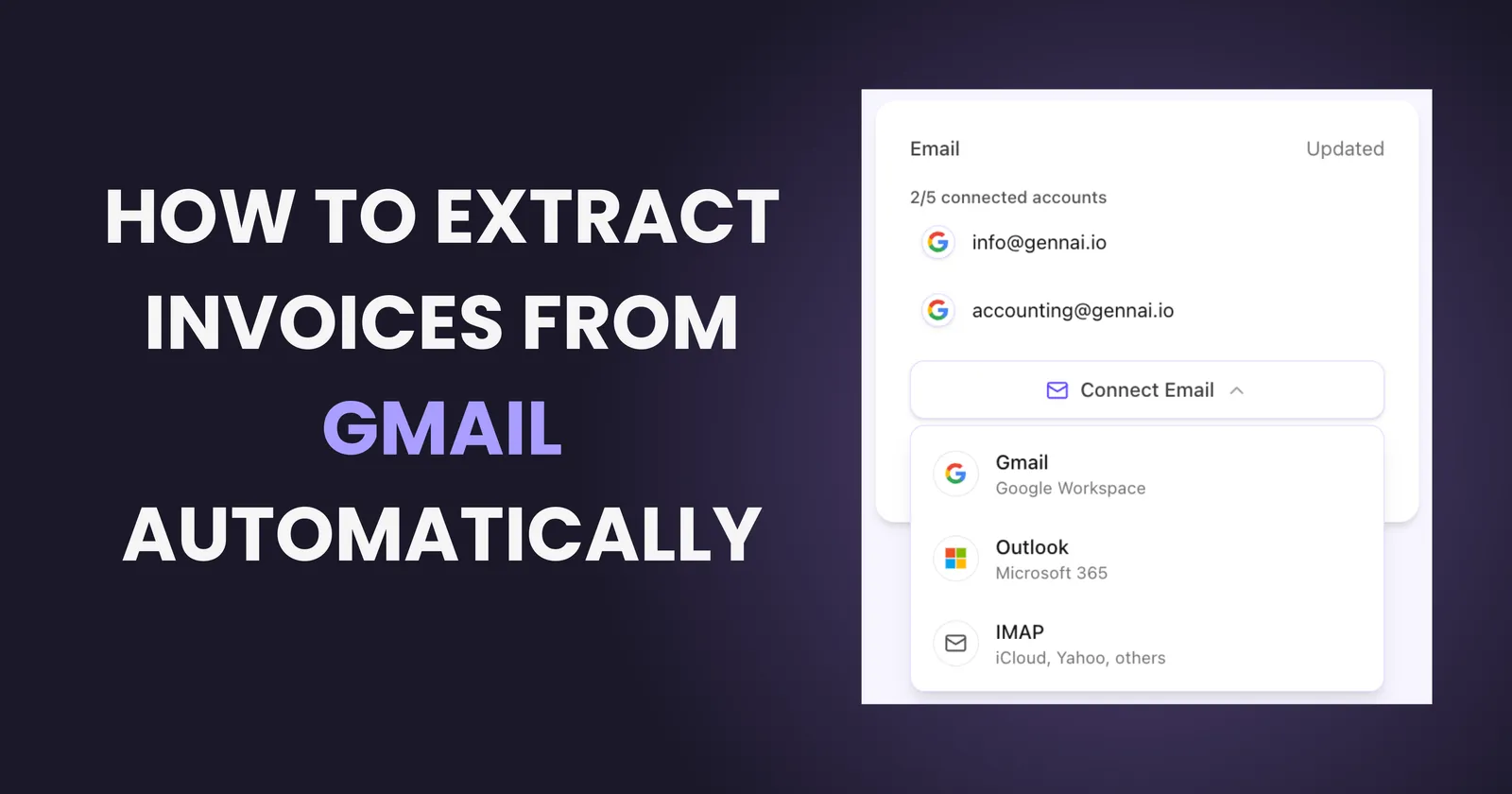
If you use Gmail for business, you are probably drowning in invoice emails. They come from dozens of vendors, in different formats, scattered across months of messages. Finding them all? A nightmare. Extracting the data? Even worse.
The good news: you can automate this entirely. In this guide, I will show you exactly how to extract invoices from Gmail automatically - step by step, with screenshots, in under 5 minutes.
For the complete picture on email invoice extraction across all providers, check out our complete guide to automatically extracting invoices from email. If you are deciding between email platforms, our Gmail vs Outlook comparison for invoice management breaks down the key differences. And if you want to understand why this matters financially, see the hidden cost of lost invoices. Running an online store? Our e-commerce invoice extraction guide covers the unique challenges of managing invoices from suppliers, marketplaces, and shipping carriers.
Why Extract Invoices from Gmail Automatically?
Before we dive into the how, let us be clear about the why. Manual invoice collection from Gmail typically means:
| Manual Task | Time Wasted |
|---|---|
| Searching for invoice emails | 10-15 min/day |
| Downloading attachments | 5-10 min/day |
| Opening and checking each PDF | 10-20 min/day |
| Typing data into spreadsheets | 15-30 min/day |
| TOTAL | 40-75 min/day = 15-25 hours/month |
Prefer video? Watch the complete tutorial here:
What You Will Need
To follow this tutorial, you will need:
- A Gmail or Google Workspace account
- An invoice extraction tool with Gmail integration (we will use Gennai in this example)
- About 5 minutes
That is it. No coding, no complex setup, no IT department required.
Step 1: Sign Up for an Invoice Extraction Tool
First, you need a tool that can connect to Gmail and automatically detect invoices. Not all tools are equal - look for one that:
- Connects directly via OAuth (secure, no password sharing)
- Uses AI to detect invoices (not just keyword matching)
- Offers retroactive scanning (finds past invoices, not just new ones)
- Extracts data automatically (vendor, amount, date - not just the PDF)
For a comprehensive evaluation framework to help you choose the right tool, see our decision guide for choosing invoice management software.
For this tutorial, I will use Gennai because it checks all these boxes and has a free tier to get started.
Step 2: Connect Your Gmail Account
Once you have signed up, connecting Gmail takes about 30 seconds:
Security note: OAuth means the tool never sees your password. Google handles authentication directly, and you can revoke access anytime from your Google Account settings.
You can connect multiple Gmail accounts if invoices arrive at different addresses - personal, business, accounting@, etc.
Step 3: Run Your First Scan (Including Past Emails)
Here is where the magic happens. Most tools let you scan historical emails - not just wait for new ones. This is huge: you can instantly capture months or years of invoices.
Choose your scan range:
| Option | Best For |
|---|---|
| Last 30 days | Quick test to see how it works |
| Last 12 months | Capture recent fiscal year |
| All time | Complete invoice archive from your entire Gmail history |
The AI will:
- Identify emails containing invoices
- Extract PDF attachments (and invoices embedded in email text)
- Pull out key data: vendor name, amount, date, invoice number
- Organize everything in your dashboard
Step 4: Review Your Extracted Invoices
After the scan completes, you will see all your invoices in one place - probably for the first time ever.
Take a few minutes to review:
- Are vendors being identified correctly?
- Are amounts accurate?
- Any duplicates or non-invoices that snuck in?
Modern AI extraction is highly accurate (99%+ for most invoice formats), but it is worth checking your first batch. If you spot errors, most tools let you correct them - and the AI learns from your corrections.
Step 5: Enable Automatic Monitoring
The final step: turn on continuous monitoring so you never have to manually check for invoices again.
Once enabled, the tool will:
- Check your Gmail inbox automatically (typically every hour)
- Detect new invoice emails as they arrive
- Extract data and add invoices to your dashboard
- (Optional) Send you notifications for high-value invoices
From now on, invoices just appear in your system - extracted, organized, and ready for processing.
Bonus: Export Your Data
Extracted invoices are only useful if you can get the data where you need it. Set up exports to:
- Download CSV/Excel for manual import to any system
- Sync to Google Sheets for collaborative tracking
- Push to QuickBooks/Xero for direct accounting integration
Common Questions
Will this work with Google Workspace (business Gmail)?
Yes. OAuth works the same way for personal Gmail and Google Workspace accounts. If your company uses Google Workspace, you can connect your business email just like a personal account.
Can I connect multiple Gmail accounts?
Absolutely. Most tools support unlimited email accounts. This is useful if invoices arrive at different addresses (accounting@, info@, your personal email, etc.).
What about emails in folders or labels?
The scan searches your entire mailbox, including all labels and folders. It does not matter where the email is - if it contains an invoice, it will be found.
Is my email data secure?
With OAuth, your password is never shared. The tool only gets read access to emails (it cannot send emails or modify your inbox). Your emails stay in Gmail - only the invoice data is extracted. Look for tools with SOC 2 compliance or similar security certifications.
Start Extracting in 5 Minutes
That is it - five steps to never manually hunt for invoices again:
The whole process takes under 5 minutes, and you will immediately see every invoice hiding in your inbox.
How Gennai Helps: Gennai connects to your Gmail in seconds and uses AI to automatically find and extract invoices - including years of past emails. Try it free and see your invoices organized in under 2 minutes.
TL;DR
- Gmail invoice extraction automates finding and capturing invoices from your inbox
- Manual invoice collection wastes 15-25 hours per month - automation eliminates this
- 5 steps to set up: sign up, connect Gmail via OAuth, scan past emails, review data, enable monitoring
- Works with both personal Gmail and Google Workspace accounts
- Security: OAuth means no password sharing, read-only access, emails stay in Gmail
- Start today: Setup takes under 5 minutes with Gennai's free tier
Ready to automate your invoices?
Start extracting invoices from your email automatically with Gennai. Free plan available, no credit card required.
Start FreeRelated Articles
Accounts Payable Turnover Ratio Explained
The accounts payable turnover ratio shows how fast you pay suppliers. Get the formula, a worked example, benchmarks and what your number really means.
GuideNet 30 vs Net 60: What Payment Terms Really Mean for Your Cash
Net 30 vs net 60 explained for business owners: what each term means, when the clock really starts, and how the gap hits your cash on both sides.
GuideThe Accounts Payable Process, Step by Step (for Owners)
The accounts payable process has five steps: receive, verify, approve, pay, and record each invoice. Here is how each works and where owners lose money.