
8 Common OCR Errors and How to Fix Them
8 most common OCR errors in invoice processing with practical fixes. From character confusion to table extraction failures and how to solve them.

OCR errors are inevitable. Even the best systems misread characters occasionally. The difference between a frustrating OCR implementation and one that actually works comes down to knowing which errors to expect and having practical fixes ready.
This guide covers the eight most common OCR errors finance teams encounter when processing invoices, plus tested solutions that actually work.
1. Character Confusion (The Classic OCR Problem)
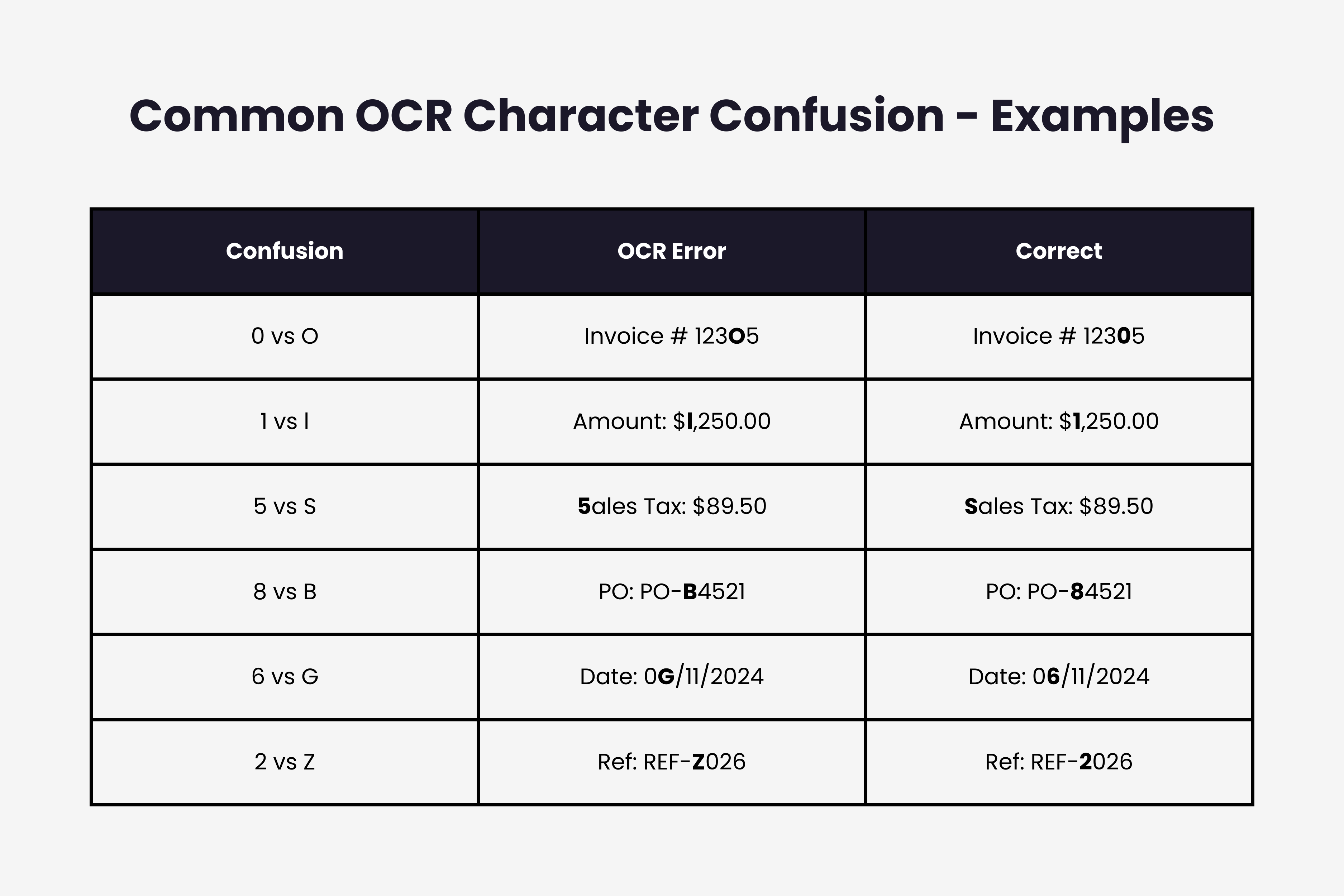
Certain characters look nearly identical to OCR engines. The number zero and letter O. The number one and lowercase L. The number five and uppercase S. These similarities cause consistent misreads.
Why it happens: OCR analyzes pixel patterns. When characters share similar shapes, the engine makes educated guesses that are sometimes wrong. Invoice fonts vary wildly, making character boundaries even harder to distinguish.
The fix: Implement context validation. If an invoice number field contains "INV01CE" with a zero where there should be an O, validation rules catch it. Invoice numbers typically contain only numbers. Vendor names contain only letters. Cross referencing field types against expected patterns flags most character confusion automatically.
Train your OCR system with correction feedback. When someone fixes "5ales Tax" to "Sales Tax", the system learns that S appears more frequently than 5 in that context. This is how machine learning improves OCR accuracy over time.
2. Skewed and Rotated Documents
Scanned invoices arrive at odd angles. Someone photographed an invoice with their phone while standing at an angle. The paper fed through the scanner crooked. Even a 2 degree tilt degrades OCR accuracy significantly.
Why it happens: OCR engines expect horizontal text baselines. When text sits at an angle, character recognition struggles. The engine might read "Invoice" as "Invoic e" or miss characters entirely.
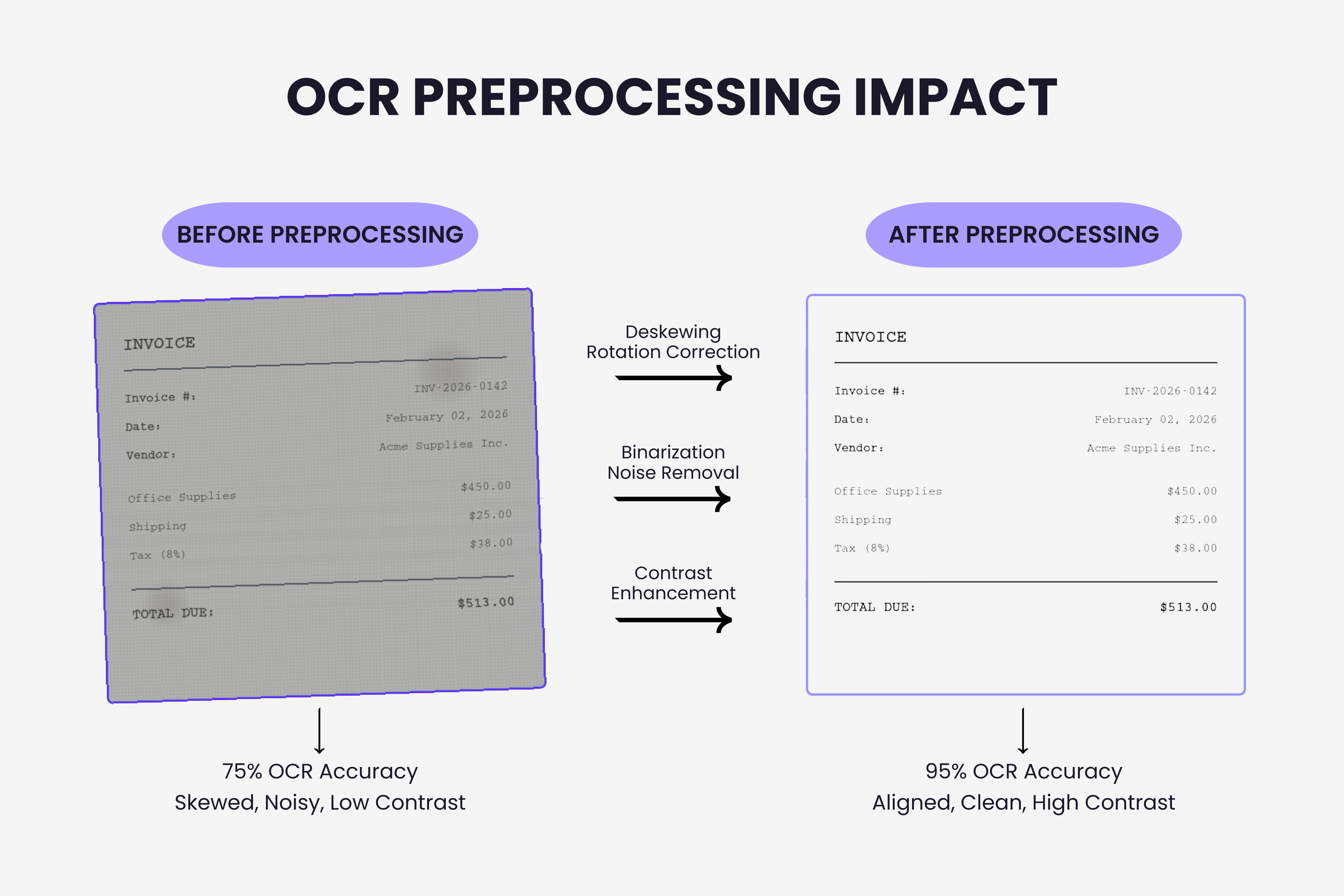
The fix: Apply automatic deskewing during preprocessing. Modern OCR pipelines detect text orientation and rotate images to correct alignment before attempting character recognition. This happens in milliseconds and dramatically improves accuracy.
For manual fixes, most OCR tools include rotation controls. A quick visual check before processing catches obviously tilted documents. Some systems now detect rotation automatically and correct it without human intervention.
3. Low Resolution and Image Quality
Blurry photos, low resolution scans, and poor lighting create unclear character boundaries. When the OCR engine can't distinguish where one character ends and another begins, errors multiply.
Why it happens: Vendors send invoices as compressed email attachments. Finance teams photograph paper invoices with phone cameras in poor lighting. PDFs get re-saved at lower quality. Each compression degrades the image further.
The fix: Set minimum resolution standards. Configure scanners for 300 DPI minimum. For email submissions, provide vendors with scanning guidelines that specify resolution requirements.
Use preprocessing enhancement. Many OCR systems include automatic contrast adjustment, sharpening, and noise reduction. These filters improve image quality before character recognition runs. The difference between raw and enhanced processing can be 15 to 20 percentage points in accuracy. Learn more about how PDF invoice extraction handles image quality challenges.
4. Mixed Fonts and Handwritten Additions
Invoices combine printed text with handwritten notes, stamps, and signatures. OCR trained on standard fonts struggles with handwriting. Different font families on the same invoice create recognition inconsistencies.
Why it happens: Standard OCR models train on typed text. Handwriting varies by individual and lacks the consistency OCR needs. Decorative invoice fonts don't match training data patterns.
The fix: Segment handwritten and printed regions separately. Advanced OCR systems detect handwritten areas and either skip them or route them to specialized handwriting recognition models. This prevents handwritten notes from corrupting typed field extraction.
For critical handwritten fields like PO numbers, implement manual review workflows. Flag invoices containing handwriting in important fields for human verification rather than risking incorrect extraction.
5. Background Noise and Artifacts
Invoices contain logos, watermarks, background patterns, stamps, and coffee stains. These visual elements confuse OCR engines trying to identify actual text.
Why it happens: OCR engines analyze all visible pixels. They can't inherently distinguish between text and decorative elements. A complex company logo overlapping invoice text creates character recognition failures.
The fix: Apply binarization preprocessing. This converts images to pure black text on white backgrounds, removing gray areas and visual noise. Binarization eliminates most background patterns while preserving text clarity.
Use OCR confidence scoring. When the engine detects potential noise interference, it flags those fields for review rather than accepting low confidence extractions.
6. Date Format Confusion
Dates appear in dozens of formats. MM/DD/YYYY versus DD/MM/YYYY. Written as "Jan 15, 2026" or "15 January 2026". OCR might correctly read the characters but extract them in the wrong date format.
Why it happens: OCR reads characters, not meaning. It sees "01/02/2026" and can't determine if that means January 2nd or February 1st without additional context.
The fix: Implement regional date parsing rules. Configure your system to expect specific date formats based on vendor country. US vendors use MM/DD/YYYY. European vendors typically use DD/MM/YYYY.
Add validation against impossible dates. Dates in the future for past invoices trigger review. Dates from 2015 on a 2026 invoice get flagged. These logical checks catch date extraction errors automatically.
7. Currency and Decimal Handling
Different regions use different decimal separators. The US uses periods (1,234.56). Europe uses commas (1.234,56). OCR reading "1.234,56" might extract it as two separate numbers or misinterpret the decimal position entirely.
Why it happens: OCR sees punctuation marks as characters, not mathematical notation. Without context, it can't distinguish thousands separators from decimal points.
The fix: Apply currency specific validation rules. If you know a vendor is European, parse amounts using comma decimals. Validate that line items sum correctly to totals. Mathematical inconsistencies reveal decimal misplacement errors.
Use magnitude checking. An invoice total of $12.3456 (four decimal places) suggests an extraction error. Most currencies use two decimal places maximum.
8. Table and Line Item Extraction Failures
Invoice tables contain multiple columns aligned spatially. OCR must correctly identify column headers, associate values with the right columns, and handle rows that span multiple lines.
Why it happens: Tables rely on visual alignment, not explicit markup. OCR must infer table structure from spacing and positioning. Merged cells, varying row heights, and dense formatting complicate structure detection.
The fix: Use table specific OCR models. Many modern OCR systems include specialized table detection algorithms that identify grid structures before attempting text extraction. This dramatically improves line item accuracy.
Implement column validation. If a quantity column suddenly contains text instead of numbers, flag that row. Column type consistency checking catches most table extraction errors.
Prevention Strategies That Work
Fixing errors after they happen is necessary, but prevention works better. Several strategies reduce OCR error rates before extraction even runs.
Standardize input sources. Work with major vendors to receive native PDF invoices instead of scans. Native PDFs eliminate most image quality issues. This is how Invoice OCR achieves higher accuracy on digital documents.
Create vendor specific templates. For high volume vendors sending consistent formats, template based extraction achieves 99%+ accuracy. The upfront setup cost pays off through eliminating recurring errors.
Implement progressive validation. Check field level accuracy, verify mathematical relationships between fields, and validate against known vendor patterns. Each layer catches different error types.
Maintain human review for low confidence fields. Rather than blindly accepting all extractions, flag uncertain results. Review 5% of extractions carefully instead of missing errors in 100%.
Key Takeaways
The eight most common OCR errors are character confusion between similar shapes, skewed or rotated documents, low image quality, mixed fonts with handwriting, background noise, date format misinterpretation, currency and decimal confusion, and table structure failures.
Each error has specific causes rooted in how OCR engines analyze visual patterns versus understanding context and meaning. Character confusion happens because shapes look similar. Skewing affects text baseline detection. Low quality creates unclear boundaries.
Practical fixes combine preprocessing improvements, validation rules, and specialized OCR models. Deskewing and enhancement handle image quality. Context validation catches character confusion. Table detection algorithms improve line item extraction.
Prevention strategies like standardizing input formats, using templates for repeat vendors, implementing progressive validation, and maintaining human review on low confidence fields reduce error rates more effectively than only fixing problems after they occur.
The goal is not zero errors, which is impossible, but systematic error reduction through understanding root causes and applying targeted solutions. Monitor which errors occur most frequently in your invoice processing and prioritize fixes for your specific problem patterns.
For an end-to-end view of how modern AI systems minimize these errors through multi-layered processing, see our complete AI invoice processing guide.
TL;DR
- The 8 most common OCR errors are character confusion (0/O, 1/l, 5/S), skewed documents, low resolution, mixed fonts with handwriting, background noise, date format confusion, currency/decimal mishandling, and table extraction failures
- Character confusion is fixed with context validation and correction feedback that teaches the system which characters belong in specific field types
- Image quality issues (skewing, low resolution, noise) are solved with preprocessing: automatic deskewing, contrast enhancement, binarization, and 300 DPI minimum scanning
- Date and currency errors require regional parsing rules and mathematical validation to catch format misinterpretation
- Table extraction failures need specialized table detection algorithms and column type consistency checking
- Prevention beats correction: standardize input sources to native PDFs, create vendor templates, implement progressive validation, and maintain human review for low confidence fields
- The goal isn't zero errors but systematic error reduction through understanding root causes and applying targeted solutions to your most frequent problem patterns
Ready to automate your invoices?
Start extracting invoices from your email automatically with Gennai. Free plan available, no credit card required.
Start FreeRelated Articles
How to Process Invoices in Multiple Languages
A practical guide to multilingual invoice processing: the three layers of the language problem, why template-based OCR fails across languages, and what to verify in your setup.
GuideInvoice Line Item Extraction: Why It's Harder Than It Looks
Invoice line item extraction fails where header fields succeed. Learn the five structural problems that break table extraction and how modern AI solves them.
GuideWhy OCR Accuracy Matters More Than Speed in 2026
Why OCR accuracy outweighs speed in invoice processing. A 4% accuracy gap creates 20x more errors. Strategies to evaluate OCR solutions in 2026.