
How to Import Invoices to Xero From Email Automatically (2026 Guide)
Import invoices to Xero from email automatically. Skip manual forwarding and AI-extract data, account codes and taxes from Gmail or Outlook into Xero bills.

If you run your books in Xero and supplier invoices keep arriving in your inbox, you already know the friction. Xero is excellent at accounting, but the part where invoices move from your email into Xero as bills is mostly manual. Most teams forward each PDF to the Xero bills email address, wait for the draft to appear, open it, assign the account code, set the tax rate, fix what the draft got wrong, and approve. Multiply that by 50 to 500 invoices a month and you have a real operational tax on your AP function.
This guide is about doing it differently. Specifically, how to import invoices to Xero from email automatically in 2026 without forwarding, without drag and drop, and without retyping account codes that the system should already know. You will see how the native Xero email-to-bills feature works (and where it stops being enough), how Hubdoc and Dext fit in, and how an AI-first capture layer like Gennai connects directly to Gmail or Outlook and pushes structured, pre-coded bills into Xero in real time.
TL;DR
- Xero's native email-to-bills feature works for low volumes but requires manual forwarding, forces Tax Inclusive, and does not extract line items or assign account codes.
- Hubdoc is bundled free with Xero Business plans but holds the lowest rating among Xero capture tools (3.5 stars on the Xero App Store) and still does not extract line items.
- Dext (formerly Receipt Bank) is more capable but starts at $24 per user per month and line items are an add-on.
- AI-first capture tools like Gennai connect directly to Gmail and Outlook, scan incoming and historic invoices automatically, suggest Xero account codes by vendor history, and push fully coded bills into Xero through OAuth 2.0.
- Setup takes under five minutes. Free tier available.
What "import invoices to Xero from email" actually means in 2026
There is no single way to get email invoices into Xero. The phrase covers four real workflows, and the right one depends on your invoice volume, how clean your vendor data is and how much your team values its time. Understanding the difference matters because most buyers pick the wrong layer for their stage and end up with manual work hidden inside a tool that markets itself as automated.
1. Manual forwarding to Xero's bills email address. Xero gives every organisation a unique email address (visible under Business > Bills to pay). You forward supplier emails to that address. Xero attaches the PDF to a draft bill and pre-fills some fields. Free, native, slow.
2. Hubdoc. Bundled with Xero Business plans. Hubdoc gives you another email address and a mobile app for uploading. It extracts header data and publishes to Xero. Same forwarding pattern, slightly better extraction, still no line items.
3. Pre-accounting tools like Dext, AutoEntry or Datamolino. Each gives you a submission email address (or app), pulls invoices, extracts data and publishes to Xero. Strong extraction. Paid per user or per document, starting around $24 per user per month for Dext.
4. AI-first inbox capture. Connects directly to Gmail or Outlook through OAuth, scans new and historic invoices without you forwarding anything, extracts every field including line items, suggests Xero account codes by vendor history, and pushes coded bills into Xero. Closest to fully automated. This is the pattern Gennai uses, and it is the angle this guide focuses on. If you want to compare the full Xero ecosystem first, the breakdown of the best Xero add-ons for invoice management in 2026 goes deeper on each option.
Where Xero's native email-to-bills feature stops being enough
Xero has had email-to-bills for years. It works. For a sole trader or a small business processing five to twenty bills a month, it is a reasonable starting point. But the limitations are real and they show up fast as volume grows.
Based on Xero's own help documentation, the constraints of native email-to-bills include:
- Bills must be email attachments. Invoices embedded in the email body (HTML) and structured e-invoices are not accepted.
- Maximum total of 25MB per email.
- Up to 10 bills per single email.
- Draft bills are always set to Tax Inclusive, overriding organisation or supplier defaults.
- Line items are not extracted. Only header fields (Contact, Date, Total, Due Date, Reference).
- No automatic GL coding. The Account Code and Tax Rate must be applied manually before approval.
- No automatic rules per supplier. Repeatable patterns are not learned.
The Tax Inclusive issue is the one that surfaces most often in the Xero community. Many supplier invoices are formatted Tax Exclusive, and the supplier defaults you carefully set up are ignored by email-to-bills, because the draft is always created Tax Inclusive. Combined with the lack of line item extraction, the result is that every email-to-bill draft still needs human attention before approval.
The line item gap matters more than people expect. If your business needs vendor-level reconciliation, purchase order matching, or detailed expense reporting at the line level, header-only extraction leaves you typing the breakdown manually on every invoice. That is the workflow tax that compounds with volume.
Hubdoc improves on this slightly but, as Xero's own data shows, the tool holds the lowest rating of any data capture app on the Xero App Store at 3.5 out of 5 stars (Xero App Store, early 2026). It still does not extract line items, and the GL coding is rule-of-thumb by past behaviour, not true vendor learning. A full feature-by-feature comparison between Dext and Xero is covered in our Dext vs Xero comparison.
How AI-first import works: from inbox to coded Xero bill
The fundamental difference between Xero's native feature and an AI-first capture tool is the starting point. Native email-to-bills starts when you forward. AI-first capture starts before you do anything at all: the moment an invoice lands in your inbox, the tool already knows about it. No forwarding, no submission. Here is what happens end to end.
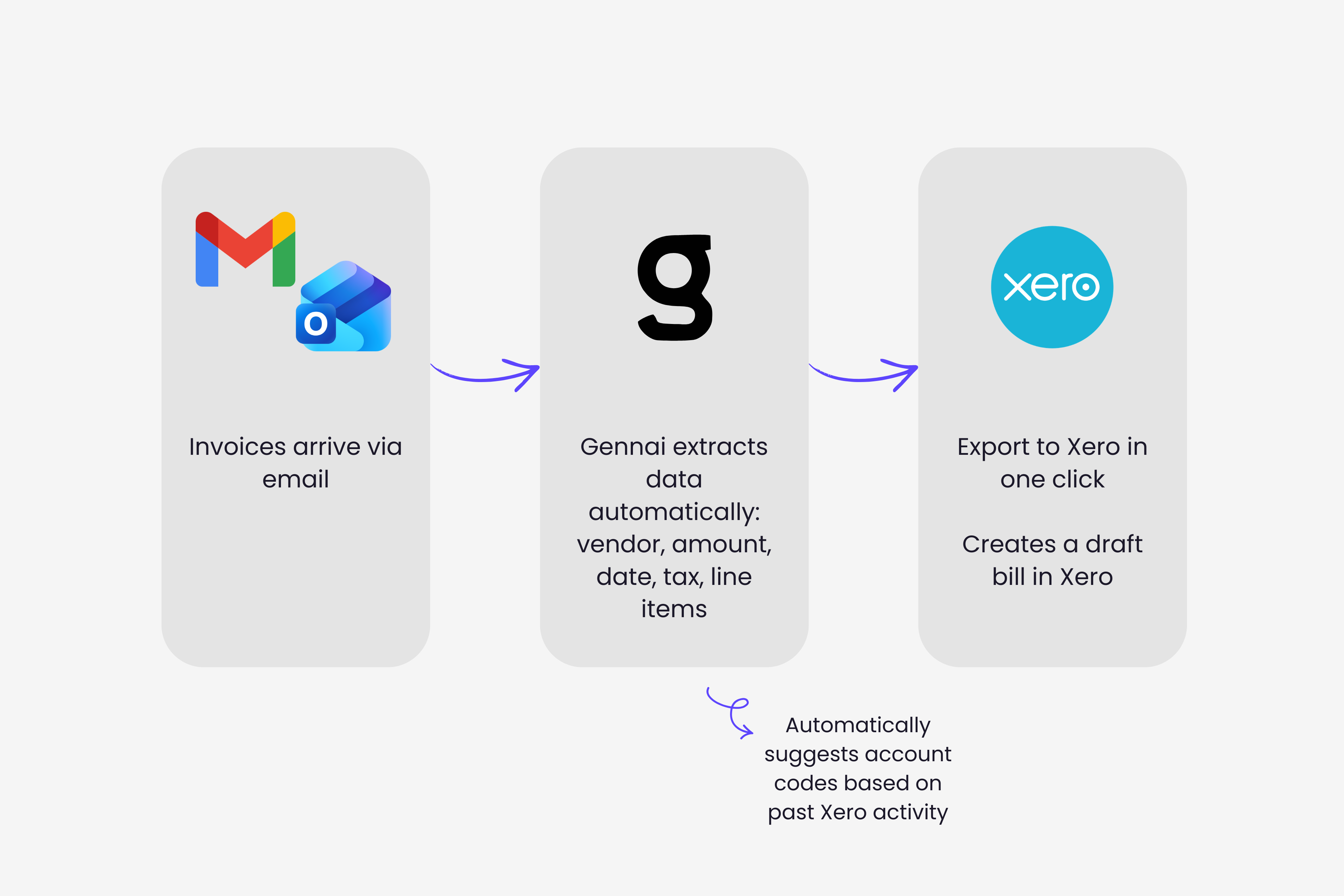
Step 1. Direct inbox connection through OAuth 2.0
You connect your Gmail or Outlook 365 account through OAuth 2.0. No password is shared. The tool requests read-only mail access (Mail.Read for Outlook, gmail.readonly for Gmail) and gets a token from the provider. You can revoke that token at any time from your Google or Microsoft account settings. This is the same auth model that Microsoft has required since retiring Basic Authentication in October 2022.
The connection covers both directions of the workflow: incoming invoices from now on, and a retroactive scan of months or years of historic email. That historic scan is what surfaces the invoices nobody ever forwarded, the SaaS subscriptions paid by card and never booked, the ad platform receipts buried under newsletters. The full guide to auto-extracting invoices from email goes deeper on the capture mechanics for both Gmail and Outlook.
Step 2. AI extraction of every relevant field
Once a message is identified as an invoice (and that classification step matters: most inbox content is not invoices), the AI extracts:
- Supplier name and tax ID
- Invoice number and date
- Due date
- Subtotal, tax amount and total
- Currency (USD, EUR, GBP, and 70+ others)
- Line items: description, quantity, unit price, line total
- Payment terms when stated
- Tax rate per line where the invoice specifies it
This is the layer where AI-first tools diverge from template-based OCR. Template OCR breaks when a supplier changes the layout of their invoice. AI models trained on millions of invoices generalise across formats, languages and supplier-specific quirks without per-supplier configuration. Modern AI extraction reaches 95-99% accuracy on standard invoices, compared to 85-92% for traditional OCR (based on benchmarking data from Ardent Partners and DocuClipper).
Step 3. Account code suggestion by vendor history
This is the step that decides how much manual work survives after extraction. Knowing that a vendor invoice exists is not the same as knowing where it belongs in your chart of accounts. AI-first tools learn from your past coding: if every AWS invoice you booked last year went to account 425 Software Subscriptions, the next AWS invoice arrives in your Xero drafts already coded 425, with a confidence score attached.
First-time vendors and unusual invoices land with a suggestion based on the description and the vendor type, marked low confidence so you review them. Repeat vendors land with high confidence coding and pass through almost untouched. This is where the time saving compounds. For 80% of your invoice volume (which comes from your top 20 vendors), the coding step disappears.
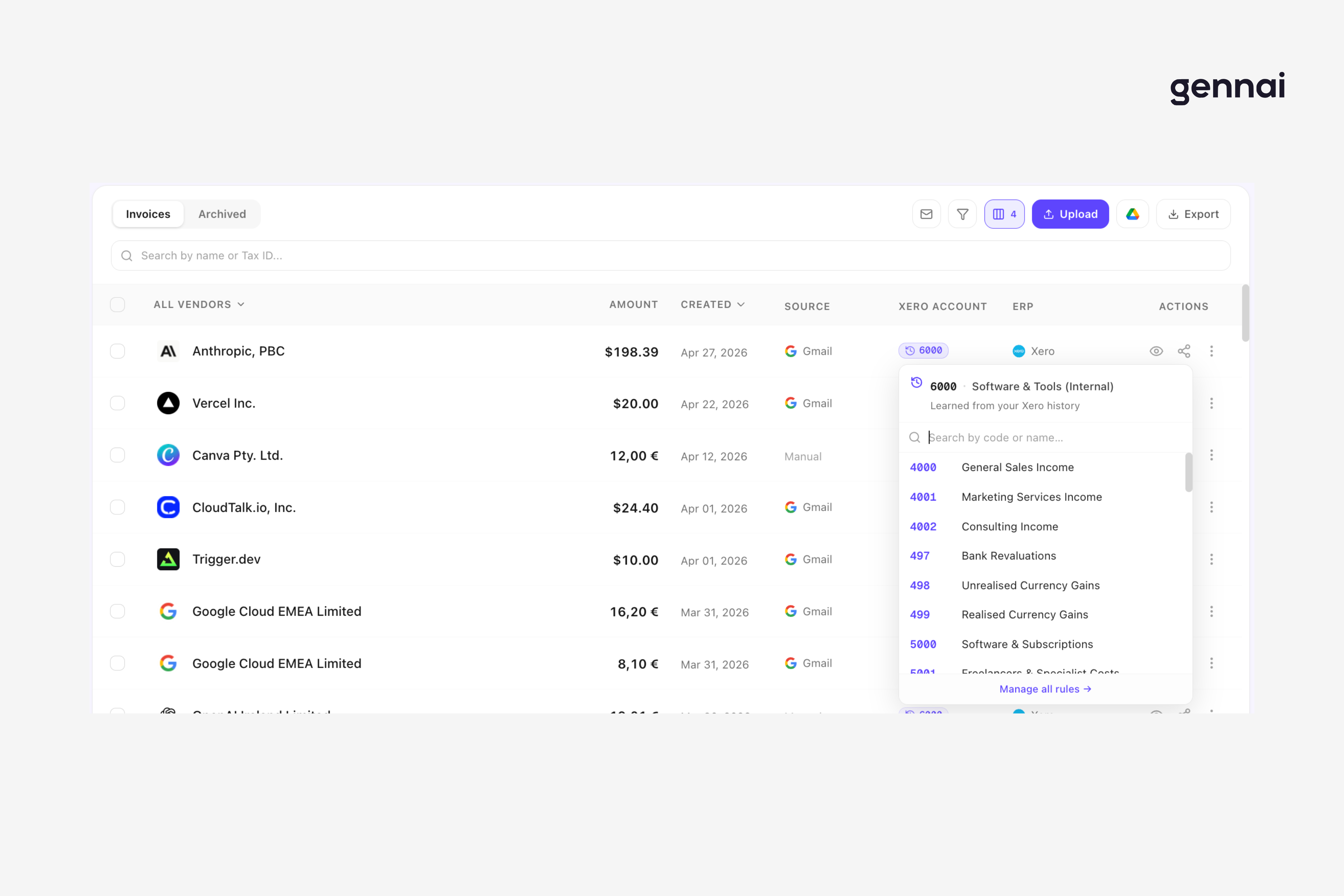
Step 4. Push to Xero as a bill, not a placeholder
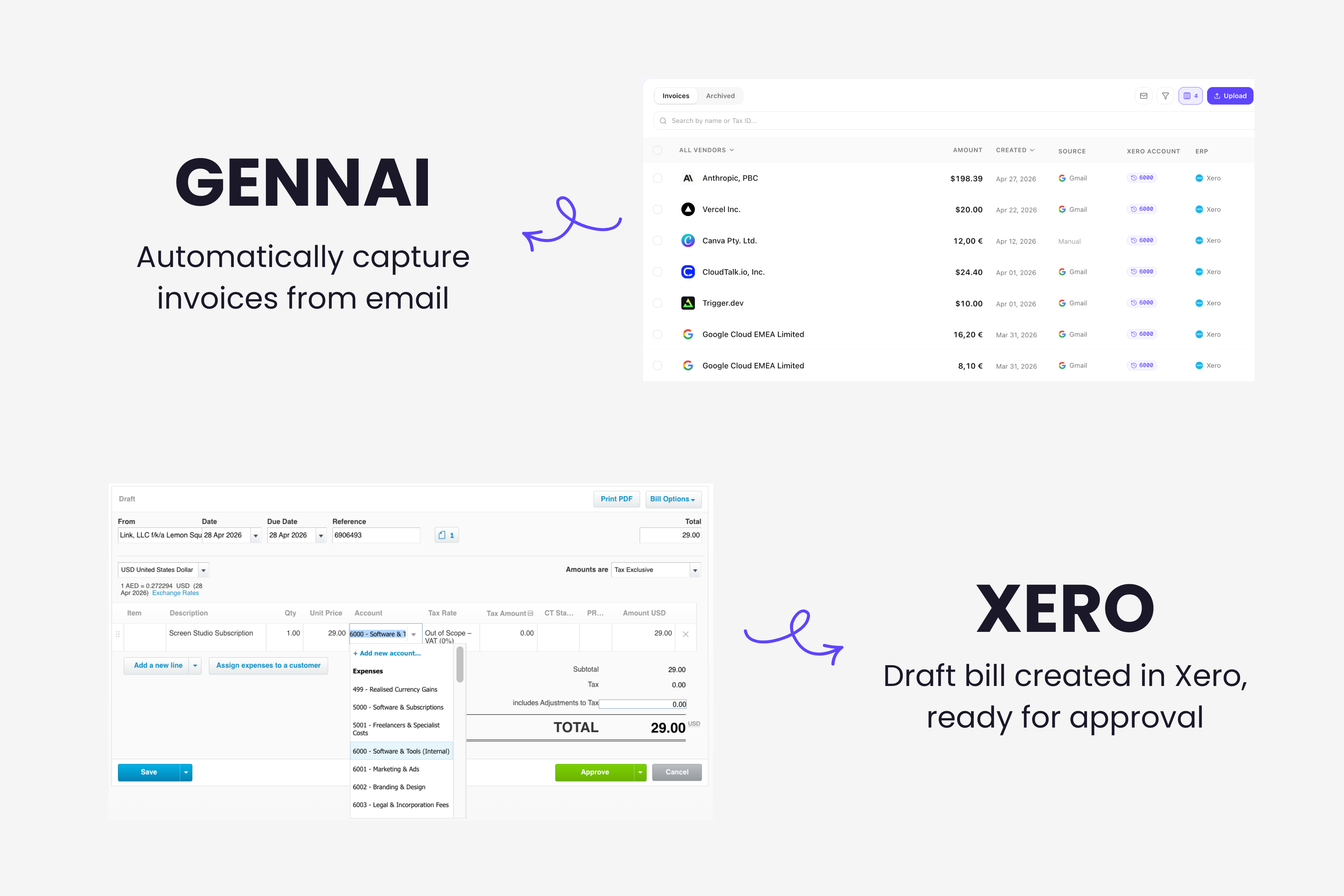
The final step is the Xero side. Gennai (and similar AI-first tools) authenticates to Xero through Xero's official OAuth flow. The user authorises the connection once, granting permission to create and update bills, contacts and attachments. After that, every approved invoice in Gennai becomes a Xero bill automatically, with:
- The supplier matched against your existing Xero contacts (or created if new)
- Date, due date, reference, total, tax populated
- Account code applied at line level
- Tax rate set per line (not forced Tax Inclusive)
- The original PDF attached to the Xero bill
- Bidirectional sync of status: when you mark the bill paid in Xero, that status flows back
What you see in Xero is a fully formed bill ready for approval or scheduled payment, not a stub with a PDF attached. For multi-currency invoices, the original currency is preserved end to end so Xero handles the FX conversion natively. The step-by-step guide to integrating invoice software with your accounting system covers the field mapping in more detail, including the patterns that hold up at scale.
Side by side: Xero native vs Hubdoc vs Dext vs Gennai for email import
Pricing checked on each vendor's website in early May 2026. Features verified against each platform's documentation.
| Capability | Xero email-to-bills | Hubdoc | Dext | Gennai |
|---|---|---|---|---|
| Connection method | Manual forward | Forward / upload | Forward / app / portal pull | Direct Gmail/Outlook OAuth |
| Retroactive inbox scan | No | No | No | Yes (full history) |
| Header fields extracted | Basic | Yes | Yes | Yes |
| Line item extraction | No | No | Add-on (extra cost) | Yes (included) |
| Account code suggestion | No | Rule-based | Yes (rules + ML) | Yes (vendor history + AI) |
| Tax handling | Forces Tax Inclusive | Inherits org defaults | Configurable | Per-line tax rate |
| Multi-currency | Base currency only | Limited | Yes | Yes (70+ currencies) |
| Entry price | Free with Xero | Free with Xero Business | From $24/user/month | Free plan, paid from $12/mo |
| Xero App Store rating | Native | 3.5 / 5 | 4.8 / 5 | Not listed (direct OAuth) |
Step-by-step setup: from Gmail/Outlook to Xero bills in under 5 minutes
The setup below is for Gennai, which is the workflow this guide focuses on, but the principles apply to any AI-first capture tool that connects directly to your inbox.
Minute 0 to 1. Create your account. Sign up at gennai.io with an email. No credit card required on the free tier. The free plan covers a meaningful invoice volume per month, which is enough to validate the workflow before paying anything.
Minute 1 to 2. Connect your email. Click Add Email Account. Choose Gmail or Outlook. The provider's OAuth screen opens. You see exactly which permissions are requested (read-only access to mail). Approve. The connection is live. If you have invoices arriving at multiple addresses (personal Gmail, shared finance@, founder's account), connect all of them at this stage. Skipping one means losing 20-40% of your real invoice volume.
Minute 2 to 3. Launch the historic scan. Pick a range: last 6 months, last year, or all available history. The scan runs in the background. A mailbox with 5 years and 10,000 emails typically completes in 10 to 20 minutes, but you do not need to wait for it to finish to keep going. The first invoices appear in your dashboard within seconds.
Minute 3 to 4. Connect Xero. Click Integrations > Xero > Connect. Sign in to Xero through the official OAuth screen. Authorise the connection: read and write access to bills, contacts and attachments. Pick the Xero organisation if you have more than one. Done.
Minute 4 to 5. Configure the sync. Choose how bills should land in Xero: as Drafts (for human review before approval) or as Awaiting Approval (to skip the draft stage for trusted vendors). Map any custom Xero tracking categories if you use them. Decide whether unmatched vendors should auto-create contacts or sit in a review queue.
From minute 5 onwards, every invoice arriving in your inboxes is processed automatically and appears in Xero. The first week is a learning week: as you correct any account codes the AI got wrong, the system learns your specific chart of accounts and vendor mapping. By week two, the review step has shrunk to handling exceptions only.
Common pitfalls when importing invoices to Xero from email
Four recurring mistakes I see in teams setting this up for the first time.
Dirty vendor data in Xero. If your Xero contacts have duplicates (AWS, Amazon Web Services, AMAZON WEB SERVICES INC.) the import creates bills against the wrong contact and your supplier spend reports stop being trustworthy. Clean the contact list before you scale the import. Most teams find 10-30% of their contacts are duplicates after years of Xero use.
Importing everything as Awaiting Approval too early. For the first two weeks of automated import, keep new bills as Drafts. This gives you a checkpoint to validate the AI's coding decisions and feed corrections back. Once the coding accuracy is consistent across your top vendors, switch to Awaiting Approval for trusted suppliers.
Ignoring the historic scan. The retroactive scan is where the surprise value lives. Teams often find bills that were paid but never booked in Xero (because the original email was missed) or VAT/GST that was deductible but never claimed. These uncovered transactions frequently exceed the cost of the tool many times over.
Not configuring tax rates per line. If your suppliers send invoices with mixed tax rates (common in EU companies dealing with both standard and reduced rates), make sure your import configuration preserves the per-line tax rate. Forcing a single tax rate per bill is the same mistake Xero's native email-to-bills makes, and the workarounds cost real time at month end.
What automating Xero import actually changes: real numbers
Two short cases, anonymised, with numbers measured before and after.
Case 1. Professional services firm, 14 employees, ~180 supplier invoices per month. Before automation: one part-time AP role spent 12 to 15 hours per month forwarding bills to Xero, opening drafts, assigning account codes and approving. After: connection to Outlook 365 plus Xero took under 10 minutes. Time spent on AP fell to 90 minutes per month, all of it review. Historic scan surfaced 42 bills that had been paid by card but never booked in Xero, representing $7,800 in unclaimed expense.
Case 2. E-commerce business, 6 employees, ~300 invoices per month split between supplier bills and ad platform receipts (Google Ads, Meta Ads, TikTok Ads). Before automation: the founder was the AP function on weekends, spending around 8 hours per month. Hubdoc was tried for 3 months and abandoned because line items were never extracted, making COGS allocation impossible. After switching to AI-first capture: line items extracted on 96% of invoices, full COGS allocation automated, AP work down to ~30 minutes per month of exception review.
The pattern in both cases is the same. The hard number that justifies the switch is the time recovered. The unexpected number is the bills that the historic scan surfaces, which the team had no idea were missing.
FAQ: importing invoices to Xero from email
Does Xero have a built-in way to import invoices from email?
Yes. Every Xero organisation has a unique bills email address (Business > Bills to pay > Create bill from email). You forward supplier PDFs there and Xero creates a draft bill with basic fields populated. The limitations are real though: 25MB per email, up to 10 bills per email, no line item extraction, no automatic account coding, and the draft is forced to Tax Inclusive regardless of your supplier defaults.
Is Hubdoc enough for our business, since it comes free with Xero?
Hubdoc is enough for header-only capture at low to medium volumes. It is bundled with most Xero Business plans, so the marginal cost is zero. The trade-off is that Hubdoc carries the lowest user rating among Xero data capture tools (3.5 stars on the Xero App Store, early 2026), does not extract line items, and lacks the active inbox monitoring that AI-first tools provide. For teams whose bottleneck is line-item data or who want extraction to happen without forwarding, Hubdoc is the wrong layer.
How is Gennai different from Dext if both push bills into Xero?
The difference is the capture point. Dext requires a submission step: forward to your Dext address, snap a photo in the Dext app, or let Dext pull from a supplier portal. Gennai monitors your Gmail or Outlook inbox directly, so capture happens before any human action. On price, Dext starts at $24 per user per month with line items as a Precision add-on. Gennai has a free tier and paid plans starting at $12 per month with line items included.
Will the bills appear in Xero with the correct account codes automatically?
Yes, once the system has learned your past coding decisions. AI-first tools like Gennai look at your existing Xero bill history per vendor and apply the most consistent account code as a high-confidence suggestion. First-time vendors get a lower-confidence suggestion based on the vendor type and invoice content. After two or three weeks of operation, the majority of bills land in Xero already coded correctly.
Does the import support multi-currency invoices?
Yes. Gennai extracts the original currency from each invoice and preserves it on the Xero bill. Xero handles the FX conversion and variance accounting natively if your organisation is set up for multi-currency on a Growing or Established plan. For base-currency Xero plans, the original currency is recorded and you handle the conversion manually as usual.
What happens if the AI extracts a field incorrectly?
You correct the field in Gennai before approval. The correction feeds back into the model for that vendor, so the same mistake does not happen on the next invoice from the same supplier. The original PDF stays attached to the Xero bill, so the source of truth is always accessible for audit.
Is the connection to Xero and Gmail/Outlook secure?
Connections use OAuth 2.0 for both ends. Gennai never sees your password. The mail permission is read-only (Mail.Read for Microsoft, gmail.readonly for Google). The Xero permission is scoped to bills, contacts and attachments. You can revoke both at any time from the respective account settings. Gennai is CASA Tier 2 certified, which is the security review standard required by Google for sensitive scope access.
Stop forwarding bills, start importing them
The native Xero email-to-bills feature solved a problem in its time. Hubdoc was an upgrade. Dext built a real category around pre-accounting capture. None of them, though, were designed for a world where AI can read an invoice better than a template, learn your chart of accounts from past behaviour, and connect directly to your inbox without you forwarding anything. That world is here, and the layer that finally automates the path from email to Xero bill exists.
If your team is still copy-pasting account codes in Xero draft bills every Monday morning, the workflow has not caught up with the tools available. Try Gennai with your Xero account, connect Gmail or Outlook, and run the historic scan. The first week shows you whether the workflow fits your business. The bills that surface in the scan often show you why you should have done it sooner.
Ready to automate your invoices?
Start extracting invoices from your email automatically with Gennai. Free plan available, no credit card required.
Start FreeRelated Articles
Auto-categorize QuickBooks invoices by supplier: how AI learns your chart of accounts
Auto-categorize QuickBooks invoices by supplier: AI applies the right account, class and location to each bill at ingestion, before it ever hits your bank feed.
GuideHow to Import Invoices to QuickBooks From Email (2026)
Import invoices to QuickBooks from email automatically. Why built-in forwarding to @assist.intuit.com falls short and how AI capture fills bills cleanly.
GuideAuto-Categorize Xero Invoices: How AI Learns Your Account Coding from Historical Data
See how Gennai auto-suggests Xero account codes by learning from your invoice history. Cut bill review time, reduce coding errors, and export pre-coded bills straight to Xero.