
Gmail filters for invoices: the complete setup guide (with copy-paste rules)
Gmail filters for invoices, explained: copy-paste search rules that auto-label every bill, plus where filters fall short and what catches the rest.

TL;DR
- A Gmail filter for invoices is a saved search (using operators like has:attachment and subject:invoice) that automatically labels, archives, or forwards every matching bill.
- Build the search first in the Gmail search bar, confirm it catches the right emails, then turn it into a filter and apply it to your existing mail too (Google Gmail Help).
- Copy-paste starting rules are below: one for PDF invoices, one for known vendors, one for SaaS receipts, and one to strip out reminders and quotes.
- Filters miss any invoice with no attachment, no 'invoice' keyword, or a cryptic subject, which is most of why finance teams still chase documents an average 9.2 days per invoice (Ardent Partners, 2025).
- When new vendors mean new rules every week, AI capture that reads the email body and the attachment is the point to switch.
A Gmail filter for invoices works by combining search operators, like has:attachment and subject:invoice, into a saved rule that automatically labels, archives, or forwards every bill that hits your inbox. If you have ever searched "Gmail filter invoices" and wanted the actual rules, that saved search is the answer, and the exact ones to copy are below. You build the search once, confirm it catches the right emails, then save it as a filter so Gmail applies it to new mail and, if you ask it to, to everything already sitting in your inbox.
That is the whole idea, and for a founder or a small finance team it is the fastest free way to stop invoices from scattering across the inbox. This guide gives you the exact copy-paste rules, the step-by-step to turn a search into a filter, and an honest section on the invoices these filters will never catch, because knowing the ceiling matters before you build your whole workflow on it.
How Gmail filters for invoices actually work
A filter is just a saved search plus an action. Google documents a set of search operators you can use to filter Gmail results, and the same query that finds your invoices in the search bar becomes the condition for a filter. The operators that matter for invoices are short and worth memorising:
has:attachmentnarrows to emails carrying a file, which is where most invoices live.filename:pdfgoes further and matches the attachment type, so you skip the signature images and logos that also count as attachments.subject:(invoice OR bill OR receipt)scans only the subject line, and theORlets one rule cover the words vendors actually use.from:routes a known vendor by sender, which is the most reliable signal of all once you know who bills you.- The minus sign (
-subject:reminder) excludes noise like payment reminders that are not the bill itself.
Gmail also lets you turn any search straight into a rule. After you run a query, Google's own help notes you can use the results to set up a filter for those messages. So the workflow is always the same: get the search right first, then save it.
The copy-paste filter rules for invoices
Start with these. Paste each one into the Gmail search bar, check the results, then save the ones that fit how your vendors bill you. None of them are perfect on their own, which is the point of running several.
| Goal | Copy-paste search | What it catches |
|---|---|---|
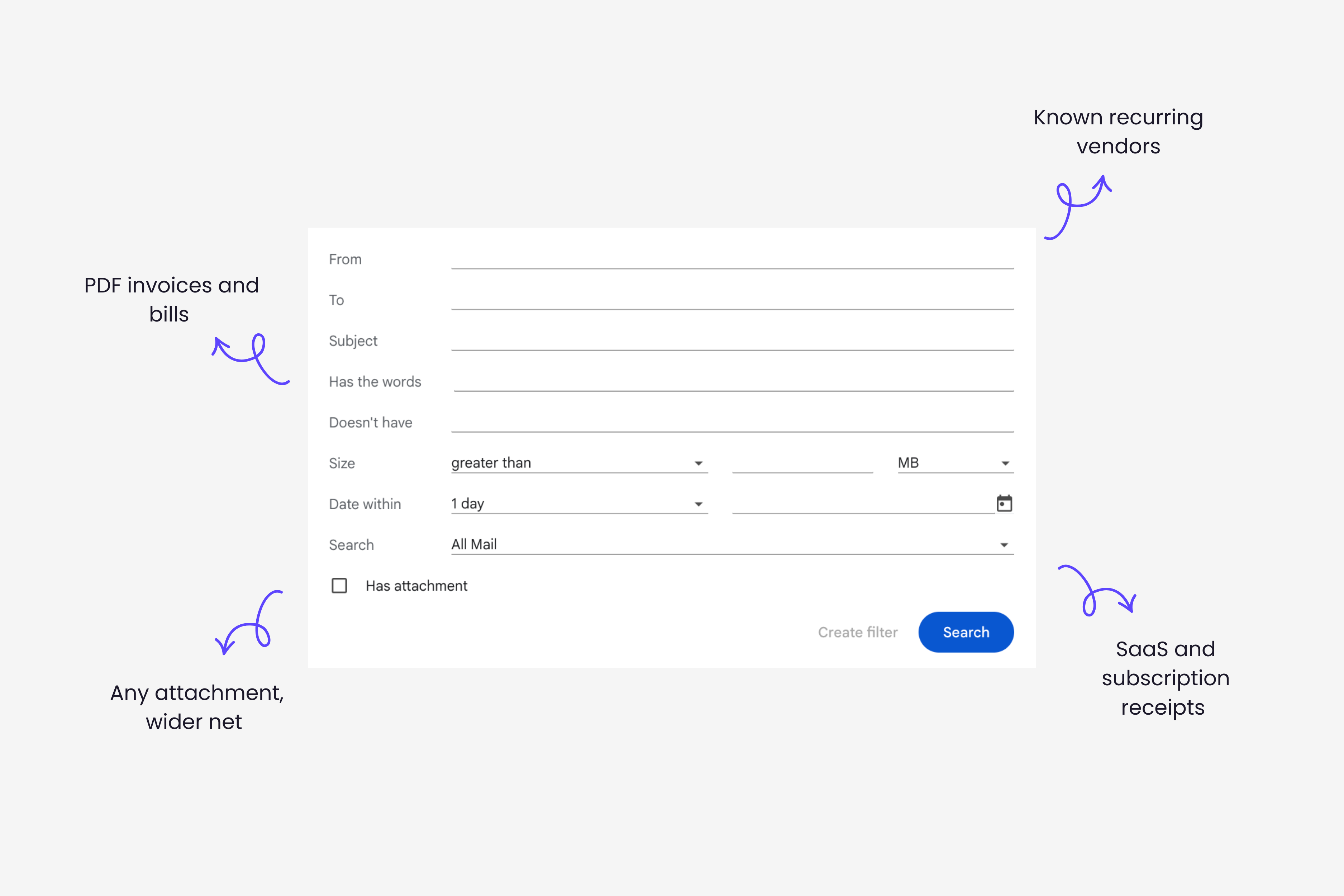
| PDF invoices and bills | subject:(invoice OR bill OR receipt) has:attachment filename:pdf | The classic case: a subject naming the document with a PDF attached |
| Any attachment, wider net | subject:(invoice OR statement OR receipt OR "tax invoice") has:attachment | Bills where the file is not always a PDF (PNG, XLSX, scanned image) |
| Known recurring vendors | from:(stripe.com OR amazonaws.com OR adobe.com) | Vendors you already pay every month, routed by sender |
| SaaS and subscription receipts | subject:(receipt OR "payment received" OR "your invoice") has:attachment | Recurring receipts that say "receipt" or "payment received", not "invoice" |
| High-value bills first | subject:invoice has:attachment larger:1M | Larger documents, often the ones you cannot afford to miss |
| Strip out the noise | subject:invoice -subject:(reminder OR overdue OR quote) | Drops reminders and quotes that are not the actual bill |
-subject:reminder, some excluded messages can still appear, because Gmail finds matching messages first and then filters. Treat the minus sign as a strong hint, not a guarantee.
How to turn a search into a saved filter
Once a search returns the right emails, saving it as a rule takes under a minute.
Invoices, optionally Skip the Inbox to keep things tidy, Star it, or Forward it to another address. Per Google, filters can label, archive, forward, or delete incoming mail automatically.Labels are where this pays off. A clean Invoices label (or one label per client, if you run a few) turns a chaotic inbox into something you can hand over, and it is the simplest version of sending those invoices to your accountant without forwarding each one by hand.
If you also live in Outlook, the logic is the same but the syntax differs, and the broader walkthrough of email filters that catch most of your invoices covers both clients side by side.
Where Gmail filters break down
Here is the part most setup guides skip. Filters match on text and attachments, so any invoice that does not announce itself slips straight through, and it is rarely a small share.
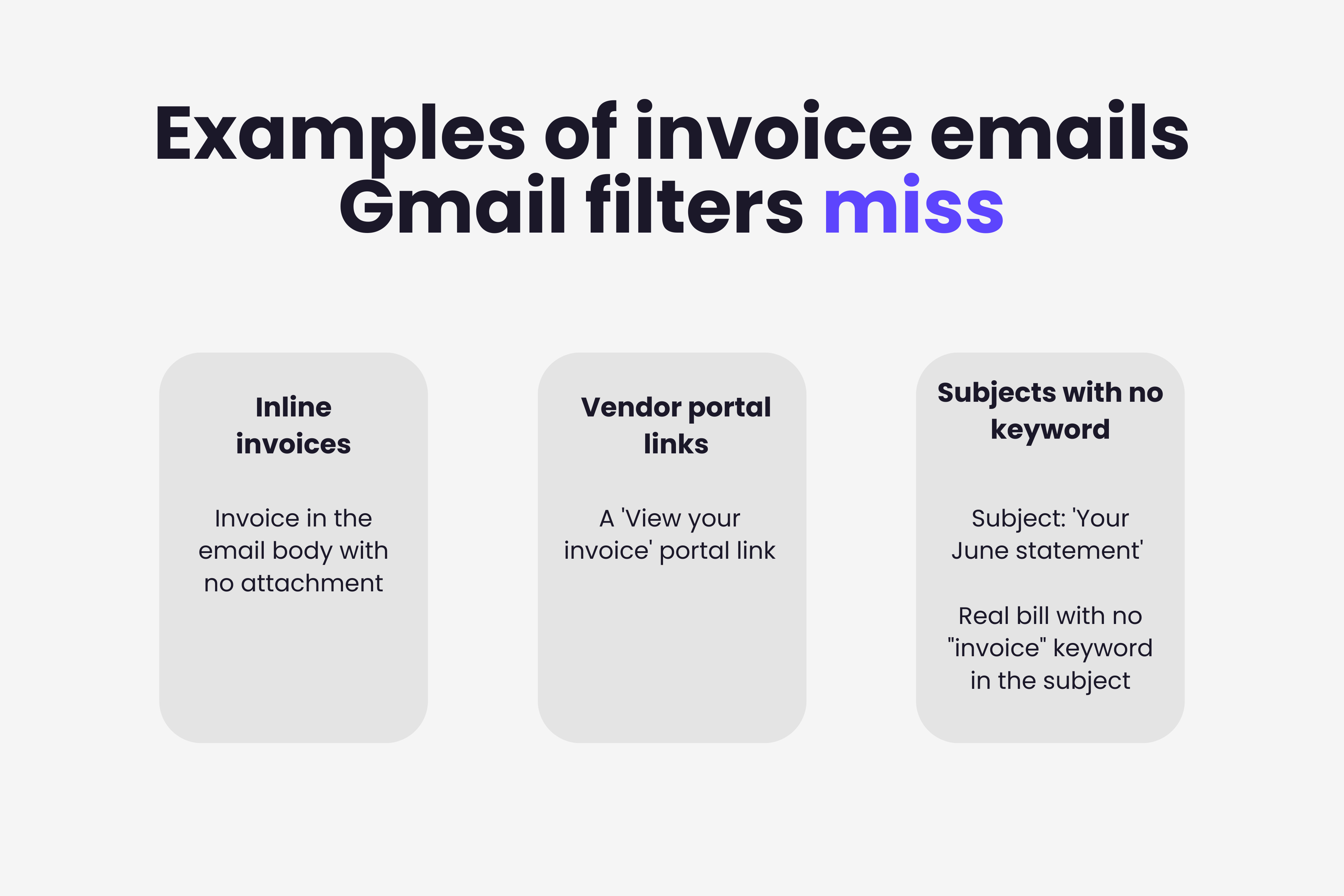
- Invoices with no attachment. Plenty of vendors put the invoice in the email body, or send a "View your invoice" link to a billing portal.
has:attachmentnever sees those, so they land in your inbox uncaught. - Invoices that never say "invoice". A subject like "Your June statement" or "Payment confirmation" carries a real bill, but a
subject:invoicerule misses it. You can keep widening theORlist, but you are guessing at every vendor's wording. - Cryptic or coded subjects. Lines like
INV-20493 / ACME LTDor a bare order number match nothing useful, and an image-only scan or a photographed receipt has no searchable text at all. - Oddly named files. A
filename:pdfrule ignores an invoice attached asscan_0012.jpgordocument(3).png, which is how a surprising number of suppliers send them. - The maintenance tax. Every new supplier is a new rule. That upkeep is part of why processing a single invoice still takes an average of 9.2 days across AP teams, according to Ardent Partners' 2025 AP Metrics That Matter, and why so many bills quietly get lost in the inbox until the month-end scramble.
None of this makes filters useless. It makes them a first layer, good at the easy 60 to 70%, blind to the rest.
When to move from filters to automatic capture
The honest rule of thumb: filters are enough until you are adding a new rule most weeks or finding invoices you never labelled. Past that, the work of maintaining rules costs more than the rules save.
The alternative is to let software read the email itself, the body and the attachment, decide whether it is an invoice or a receipt, pull out the vendor, date, amount, and tax, and file it without a keyword ever being involved. That is the difference between matching text and understanding a document. Gennai is built for exactly this kind of email-first invoice capture, and you can see the simplest version of it in the five-minute walkthrough of how to connect Gmail and let AI scan every invoice, including the ones a filter would miss. The captured invoices then export straight to Xero, QuickBooks, or Holded, so the inbox stops being the system of record.
If you are processing under 50 invoices a month and your vendors are consistent, the copy-paste rules above may be all you need. If you are past that, or you just want the time back, that is the signal to switch.
Frequently asked questions
Can Gmail automatically label invoices?
Yes. Run a search such as subject:(invoice OR bill OR receipt) has:attachment, click Create filter, and choose Apply label. Gmail will label every matching message, and you can tick the box to apply it to existing emails too.
Do Gmail filters work on emails I already received?
By default a filter only acts on new incoming mail. To label the invoices already in your inbox, tick Also apply filter to matching conversations when you create the filter, per Google's Gmail Help.
What is the best Gmail search to find all my invoices?
Start with subject:(invoice OR bill OR receipt) has:attachment, then refine by adding filename:pdf for PDFs or from: a specific vendor. No single query catches everything, so most people run two or three.
Why do my Gmail filters keep missing invoices?
Filters match on keywords and attachments. Invoices sent in the email body, behind a portal link, with no invoice keyword, or as an image with no searchable text will slip through. That gap is why teams move to AI-based capture that reads the document.
Gmail filters are a solid free first layer for organising invoices, and the copy-paste rules above will get you most of the way. The moment you are maintaining a rule for every vendor and still missing bills, it is worth letting AI read the inbox for you. Gennai captures and classifies every invoice that arrives by email, including the ones filters never catch, and exports them to your accounting tool. You can try it free, no credit card.
Ready to automate your invoices?
Start extracting invoices from your email automatically with Gennai. Free plan available, no credit card required.
Start FreeRelated Articles
Outlook 365 invoice automation for accounting firms: the multi-client setup explained
Outlook 365 invoice automation for accounting firms, explained: connect each client's mailbox once via OAuth and capture every supplier bill automatically.
GuideShared inbox vs distribution list for AP: which one actually works (and when)
Shared inbox vs distribution list for AP: a shared inbox wins on ownership and tracking, but both leave invoices uncaptured. Here is when each one works.
GuideExtract Subscription Invoices From Email Automatically (SaaS, Ads, Cloud and the Rest)
Capture every SaaS, ads, and cloud subscription invoice from your inbox. Inline emails, PDF attachments and vendor portal receipts, all extracted automatically.