
How to Send Invoices to Your Accountant Automatically from Gmail (2026)
Stop forwarding invoices manually. Connect Gmail to Gennai in 5 minutes and send structured invoice data to your accountant automatically. Xero, QuickBooks, Holded supported.

Your accountant needs your supplier invoices. You know this. They know this. And yet, every month ends the same way: a frantic thread of forwarded emails, a shared folder half the team has forgotten the password to, or a WhatsApp message that reads "can you send me the invoices again?"
This is not a minor inconvenience. According to DocuClipper research, the average cost of processing an invoice manually sits at $15 per document, and nearly half of finance teams globally spend more than five days every month just managing this. Most of that time is not spent on anything analytical. It is spent searching, forwarding, downloading, and re-uploading files that already arrived in the inbox.
This guide covers a different approach: connecting your Gmail account to an automated workflow that captures every supplier invoice the moment it arrives, extracts the structured data, and sends it to your accountant already organised. No forwarding. No shared folders. No chasing.
1. Why forwarding invoices to your accountant manually is costing you
Most small business owners treat the accountant hand-off as an afterthought. The invoice arrives, you scan it briefly to check the amount, then it sits in the inbox until someone asks for it. This pattern creates three compounding problems.
Invoices get lost or delayed
Gmail is not a document management system. Supplier invoices land alongside newsletters, meeting invites, and sales pitches. With no automatic tagging or capture, an invoice from a vendor you have not heard from in a while is easy to miss. Ardent Partners 2025 data shows best-in-class AP teams process invoices in 3.1 days. The average for everyone else is 17.4 days, and a large part of that gap comes down to the capture step.
Your accountant works with incomplete data
When you forward a PDF, you are sending a file. Your accountant still has to open it, read it, and manually key the vendor name, invoice number, amount, and due date into their accounting platform. That duplication of effort is exactly what automation eliminates. Research from IOFM shows that 84% of the average AP practitioner's time goes to manual tasks. Forwarding PDFs contributes directly to that figure.
Month-end becomes a bottleneck
When your accountant cannot reconcile accounts payable because invoices are missing, month-end close stretches. Suppliers wait longer. You lose visibility into what you actually owe. The fix is not a new folder structure or a stricter forwarding habit. It is removing the manual step entirely.
STAT: According to Ardent Partners 2025 research, the gap between best-in-class AP teams ($2.78 per invoice, 3.1-day cycle) and average teams ($12.88 per invoice, 17.4-day cycle) is not primarily a technology gap. It is a configuration gap. Most businesses have access to better tools but have not connected them.
2. The two most common Gmail invoice workflows (and what goes wrong)
Before describing what a good workflow looks like, it helps to name the two approaches most small businesses use today, and where each one breaks down.
Approach A: The manual forward
You receive an invoice by email, you forward it to your accountant. Simple in theory. In practice, this means your accountant's inbox fills with forwarded PDFs that have no consistent subject line, no metadata, and often arrive out of sequence. They still have to open each one, extract the data, and enter it manually. You have moved the problem without solving it.
Approach B: The shared folder
You download invoices from Gmail and upload them to a shared Google Drive or Dropbox folder. This solves email clutter but creates a new problem: the folder relies entirely on you remembering to check, download the attachment, rename the file, and put it in the right subfolder. When you are busy, the folder falls behind. Your accountant chases you at month-end. The cycle repeats.
Both approaches share the same flaw: they require a human to notice the invoice and take an action. An automated workflow removes that requirement entirely. If you have already looked at how AI extracts invoice data from email in general, the accountant workflow described here is the next logical step in that chain.
3. What a proper automated invoice-to-accountant workflow looks like
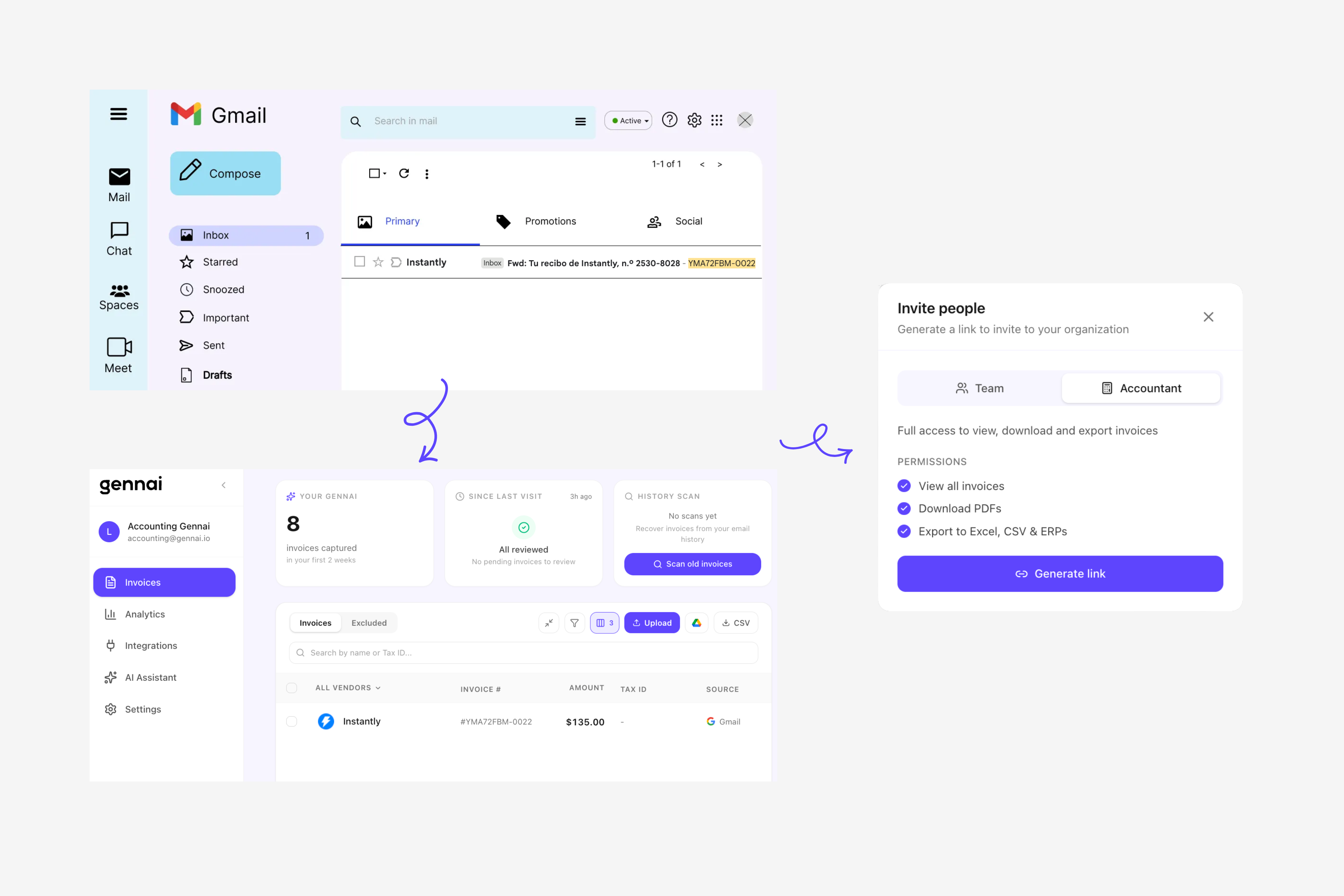
A well-configured automated workflow does four things without you touching it:
| Step | What happens | Time |
|---|---|---|
| 1. Capture | Tool connects to Gmail and scans for invoices in real time as emails arrive | Under 2 min |
| 2. Extract | AI reads the attachment and pulls vendor, amount, date, invoice number, and line items | Seconds |
| 3. Organise | Structured data is stored in a dashboard with the original file attached | Automatic |
| 4. Export | Data is pushed to your accountant's accounting platform (Xero, QuickBooks, Holded) | Real-time |
This is what separates inbox-connected tools like Gennai from simple email forwarding rules or shared drive setups. The automation does not just move files. It reads them and converts them into structured accounting records.
4. How to set it up in Gmail with Gennai: step by step
The setup takes under ten minutes. Here is the exact sequence.
1. Create a free Gennai account
Go to gennai.io and sign up. No credit card required for the free plan (up to 10 invoices/month). You will be taken to the dashboard immediately after signup.
2. Connect your Gmail account
Click "Add inbox" and choose Gmail. You will be redirected to Google's OAuth screen. Gennai uses read-only access: it can see your emails but cannot send, delete, or modify anything. Your Google password is never shared with Gennai. Google handles authentication directly.
3. Run a retroactive scan (optional but recommended)
Once connected, Gennai can scan your inbox history for invoices you have already received. Choose a time window (last 30 days, last 3 months, or full history) and the tool captures everything it finds. This gives you a complete record from day one without manual uploads.
4. Invite your accountant
From the dashboard, go to Settings and use the "Invite accountant" feature. Your accountant receives an email invitation. Once accepted, they have their own login with read-only or export access, depending on the permissions you set. They can review, comment, and export directly without touching your Gmail.
5. Connect your accounting platform
Go to Integrations and connect Xero, QuickBooks, or Holded. From this point, every invoice Gennai captures will automatically create a draft bill in your accounting software with all fields pre-filled. Your accountant only needs to review and approve.
FOR ACCOUNTANTS: If your accountant works across multiple clients, Gennai supports multi-organisation access. One accountant login can be invited to several companies without needing separate email addresses or shared passwords.
5. What your accountant actually receives
This is the part most tool descriptions skip. Understanding what happens on your accountant's side is what makes the difference between a workflow they will actually use and one they quietly ignore.
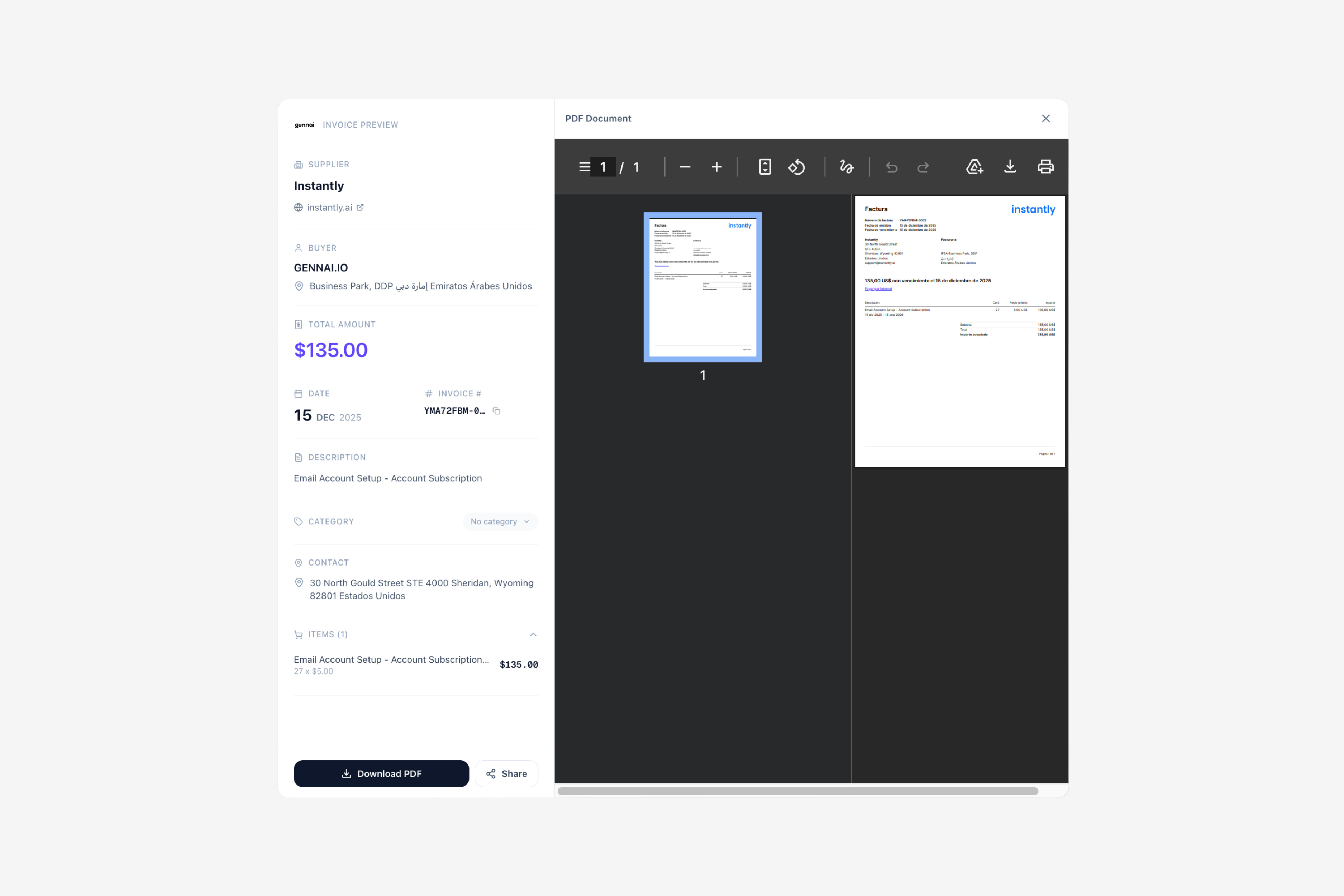
When Gennai processes an invoice from your Gmail, your accountant gets access to:
| Field | Example value | Editable by accountant |
|---|---|---|
| Vendor name | Acme Office Supplies Ltd | Yes |
| Invoice number | INV-2026-0041 | Yes |
| Invoice date | 08 Apr 2026 | Yes |
| Due date | 08 May 2026 | Yes |
| Subtotal | $1,240.00 | Yes |
| Tax (VAT/GST) | $248.00 | Yes |
| Total amount | $1,488.00 | Yes |
| Currency | USD | Yes |
| Original file | Attached PDF | Download only |
6. Connecting to Xero, QuickBooks, or Holded
The accounting integration is where the workflow becomes genuinely hands-off. Once connected, Gennai creates draft bills in your accounting software automatically. Here is what each integration does specifically.
| Platform | What gets created | Sync direction |
|---|---|---|
| Xero | Draft bill with all fields mapped, attached PDF, supplier contact created if new | Gennai to Xero; status updates return to Gennai |
| QuickBooks | Draft vendor bill with line items; vendor record created automatically | Gennai to QuickBooks; approval status syncs back |
| Holded | Purchase invoice with vendor data, linked to existing contact if found | Gennai to Holded; one-way sync for invoice creation |
For businesses using multiple inboxes or channels beyond Gmail, the multi-inbox and Outlook connection works the same way. You add each inbox as a separate source, and all captured invoices appear in one unified dashboard.
7. Common questions before you start
Does Gennai read all my emails?
No. Gennai's connection uses Gmail's OAuth API with read access scoped to attachment detection. It does not read the body of emails that are not invoice-related. The access scope is reviewed and approved by Google as part of the OAuth verification process.
What if my accountant already uses a specific tool?
If your accountant works in Xero or QuickBooks, the integration covers this directly. If they use a different platform, you can export structured data as CSV or share the Gennai dashboard with view access so they can work in whichever format they prefer.
Can I use this with Outlook instead of Gmail?
Yes. The workflow described here works identically with Outlook. You connect through Microsoft's OAuth instead of Google's. The extraction, dashboard, and accounting integrations are the same.
What happens to invoices I already have in Gmail?
The retroactive scan feature handles historical invoices. You choose how far back to scan, and Gennai processes everything it finds. Most users do this once during setup and then rely on real-time capture going forward.
Is this safe to give my accountant access to?
Gennai is CASA Tier 2 certified. Data in transit is encrypted with AES-256-GCM. Accountant access is permission-controlled: they see invoices and extracted data, not your Gmail inbox. Audit logs record every action taken within the platform.
Ready to stop forwarding invoices manually? Connect Gmail to Gennai in under 5 minutes. Free plan available, no credit card required — start here.