
Outlook 365 invoice automation for accounting firms: the multi-client setup explained
Outlook 365 invoice automation for accounting firms, explained: connect each client's mailbox once via OAuth and capture every supplier bill automatically.

TL;DR
- Microsoft 365 grants mailbox access through OAuth. A capture tool like Gennai then captures supplier invoices and exports them to each client's accounting system, with no password shared.
- Most clients approve the connection themselves in under a minute. Only tenants that restrict third-party apps need a one-time admin consent (Microsoft Learn).
- On connect, the capture tool scans the mailbox history and recovers months of older invoices, not just new ones.
- The average organization still takes 9.2 days to process a single invoice (Ardent Partners 2025); automated capture runs closer to 3.1 days.
- Each client stays separated in one firm dashboard, with per-client export to Xero, QuickBooks, or Holded.
Outlook 365 invoice automation for accounting firms works by connecting each client's Microsoft 365 mailbox once through OAuth, so supplier invoices get captured, read, and pushed into that client's accounting system without anyone forwarding, downloading, or logging in by hand. The hard part for a firm is never one inbox. It is doing this across ten, thirty, or a hundred client mailboxes while keeping every client's documents cleanly separate. This guide explains how the multi-client setup actually works, what your clients have to do, and where the Microsoft consent model can trip you up.
Why client invoice capture breaks down in Outlook 365
A firm rarely has an invoice problem of its own. It inherits dozens of them, one per client, and most of those bills arrive as PDFs buried in a client's Microsoft 365 inbox. The usual workarounds all fail at scale. Asking each client to forward bills means chasing the ones who forget. Sharing a client's password breaks security and Microsoft's own terms. Logging into each tenant by hand does not survive past a handful of clients.
The cost shows up at month-end. The average organization still takes 9.2 days to process a single invoice (Ardent Partners 2025), and teams that have automated capture run closer to 3.1 days, against 17.4 days for everyone else (Ardent Partners 2025). For a firm, that gap is multiplied by every client whose documents land late or incomplete. If you only ever need this for a single business, the single-mailbox Outlook setup covers it. The multi-client case is a different problem, and it starts with how Microsoft 365 lets an outside app read a mailbox at all.
How the multi-client connection actually works
Microsoft 365 does not let an application read a mailbox without explicit permission. It uses OAuth 2.0, the same standard behind every "Sign in with Microsoft" button. When a client connects their mailbox, they sign in to their own Microsoft account and approve a defined, read-focused scope, and the connected app, such as Gennai, receives a token to act on their behalf rather than holding their password (Microsoft Learn). Nothing is shared in plain text, and the client can revoke that access at any time from their own account.
Two consent paths exist, and knowing which one applies saves a lot of confusion:
- Individual client consent. In most small-business tenants, the client signs in and approves the connection themselves in a few clicks. No IT department involved.
- Admin consent. Some organizations lock down third-party apps so only a tenant administrator can approve them on behalf of users (Microsoft Learn). When a client's tenant is set up that way, the connection waits until their admin grants consent once for the organization. After that, users are not prompted again.
For a firm, the practical takeaway is simple. Most clients self-approve in under a minute. A minority on tightly governed tenants need their admin to click approve one time. Plan for both and the rollout stays smooth.
Setting it up across your client base
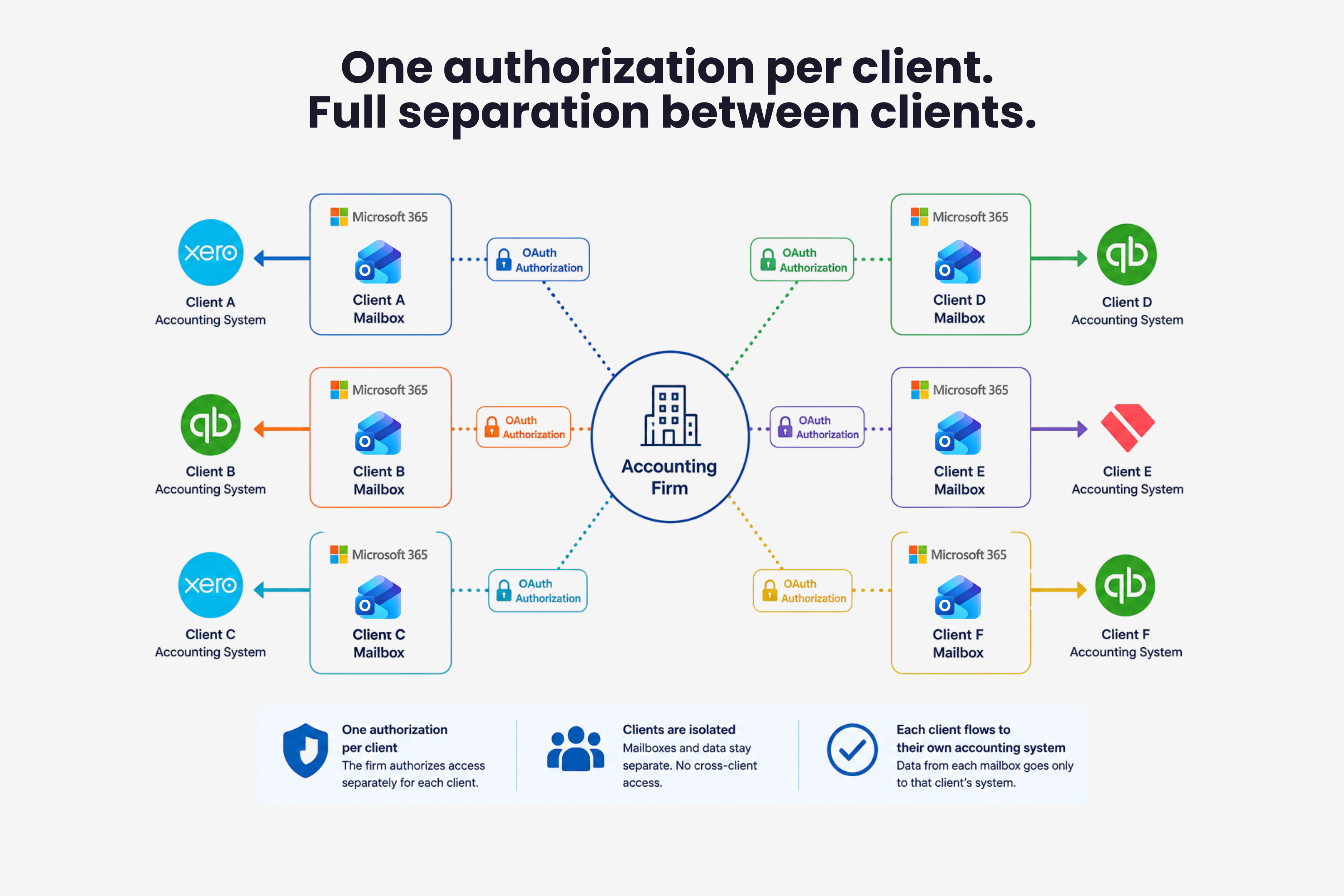
Worth drawing the line clearly here. Microsoft 365 handles the access and the consent. The capture itself, the retroactive scan, the AI extraction, and the export to each client's accounting system are done by a third-party tool such as Gennai, not by Microsoft. The setup is then the same connection repeated per client, not one bulk switch. The order that works:
- Invite each client to authorize their mailbox. From Gennai you send the connection request, then the client signs in to their own Microsoft 365 account and approves the read scope. You never see their password.
- Let it scan the history. Once a mailbox is connected, Gennai scans its full history, so months of older supplier invoices are recovered, not only the ones that arrive from today. Microsoft grants the access; the scan itself is the tool's job.
- Review by client, in one place. Gennai groups every captured invoice in a dashboard by client, with supplier, amount, tax, and date already extracted by AI, ready to check instead of retype.
- Export to each client's accounting system. Gennai pushes each client's bills into their own Xero, QuickBooks, or Holded, so the data lands where that client's books actually live.
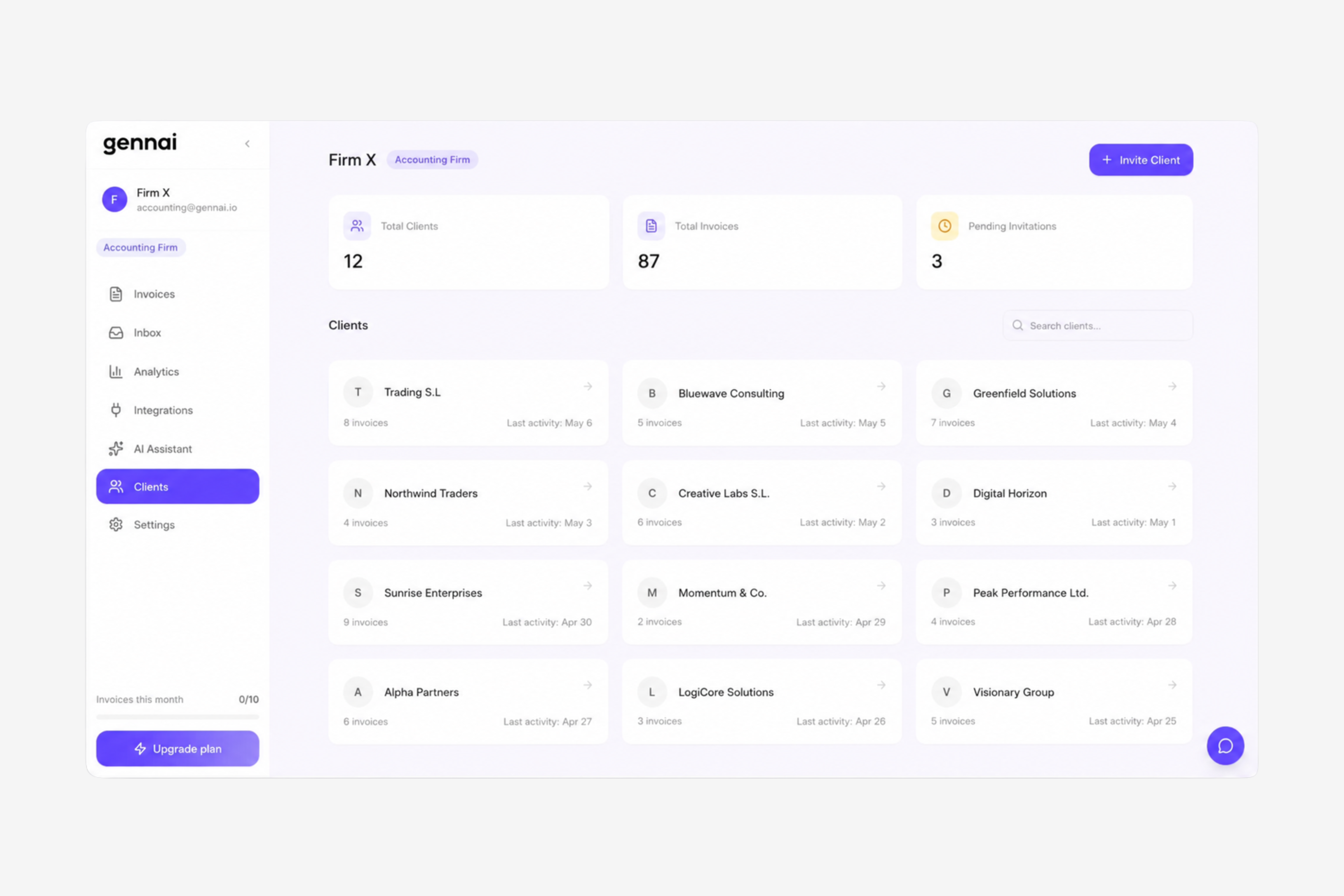
This is where a firm setup differs from a single business. The accounting destination changes per client, and the dashboard has to stop one client's invoices from ever mixing with another's. The complete workflow for accounting firms covers the wider firm process, including how to separate your own firm expenses from client work.
Three ways firms handle client Outlook invoices
The table compares the options most firms actually use, ranked by what breaks first.
| Approach | How it scales | Security | Retroactive history |
|---|---|---|---|
| Client forwards bills manually | Breaks the moment a client forgets | Fine, but always incomplete | None, only what gets forwarded |
| Firm shares the client's password | Does not scale, breaks Microsoft terms | Poor, credentials exposed | Manual and slow |
| OAuth capture tool such as Gennai | One approval per client, then automatic | Token-based, revocable, no password shared | Full history scan on connect |
Keeping clients separated and compliant
A multi-client setup is only useful if it is also clean. Each client's invoices stay in that client's view, the firm sees everything in one place without the data bleeding across accounts, and access can be granted or removed per person. Because invoices carry personal and financial data, the connection should be read-focused and revocable, which is exactly what the OAuth model gives you, and it is why Gennai's setup for accounting firms keeps each client in its own space. Mixed setups are common too, so the same one-time authorization works whether a client is on Outlook or whether their invoices arrive in Gmail.
What this does not do
Automating capture is not the same as doing the books. The limits, stated plainly:
- It does not issue invoices to your clients' customers. This is about receiving supplier bills, not billing.
- It does not replace the accounting system. Xero, QuickBooks, and Holded stay the system of record, and capture feeds them.
- No third-party tool, Gennai included, can bypass a tenant's admin consent. If a client's organization requires admin approval, that one click still has to happen on Microsoft's side.
Naming the limits up front is the honest version of a firm pitch, and it saves an awkward conversation later.
Frequently asked questions
Does every client need an IT admin to approve this?
No. In most small-business tenants the client approves the connection themselves in a few clicks. Only organizations that restrict third-party apps require a tenant administrator to grant consent once, after which users are not prompted again.
What does the client actually have to do?
Sign in to their own Microsoft 365 account once and approve a read-focused scope. They never share a password, and they can revoke access at any time from their Microsoft account.
What if a client uses both Outlook and Gmail?
Both work. The connection is one authorization per mailbox, so a client on Outlook, a client on Gmail, or a single client using both are all handled the same way, with each mailbox approved individually.
Is it secure to connect a client's mailbox this way?
Yes. The OAuth model issues a revocable token tied to a defined read scope, so no password is exposed and the client stays in control. This is the same standard behind every Sign in with Microsoft button.
Running a firm means doing this thirty times over, not once. Gennai connects each client's Outlook 365 mailbox through a single authorization, captures every supplier invoice, and exports it to that client's accounting system, so your team reviews instead of chases. You can connect your first client's inbox free, with no card, and see a full month of invoices recovered before you decide.