
How to Import Invoices to QuickBooks From Email (2026)
Import invoices to QuickBooks from email automatically. Why built-in forwarding to @assist.intuit.com falls short and how AI capture fills bills cleanly.

QuickBooks Online ships with a built-in way to email receipts and bills, and most people who try it stop using it within a month. The reason is the same in every case: it was designed for a person manually forwarding a PDF from a desk, not for a finance workflow that needs to capture every vendor invoice landing in every inbox, with no chasing. If your accounts payable process still relies on someone clicking forward, you are paying for it twice. Once in time, and once in missed invoices.
This is the piece most QuickBooks AP setups are missing: automatic capture of invoices that arrive by email, extraction of the data your accountant actually needs, and a clean push into QuickBooks Online as a bill or expense, ready to review. Below is exactly how the built-in option works, where it breaks, and how to layer automatic email capture on top so QuickBooks fills itself.
TL;DR. QuickBooks Online lets you create a custom forwarding address ending in @assist.intuit.com (older guidance still references @qbodocs.com) that turns attachments into receipts in the For Review queue. It is manual, one sender at a time, and frequently classifies bills as receipts. Connecting your full mailbox to an AI capture layer like Gennai removes the forwarding step, scans your history, extracts vendor, date, amount, tax and suggested account code, and pushes structured bills into QuickBooks automatically. Industry benchmarks put manual AP at $12 to $18 per invoice and automated AP at $2 to $4 (IOFM 2025, APQC 2024-2025).
What QuickBooks Online already gives you (and what it doesn't)
QuickBooks Online has had email receipt forwarding for years. You go to Bookkeeping, then Transactions, then Receipts, and create a custom forwarding address. According to current Intuit documentation, that address ends in @assist.intuit.com, though older help threads and community guidance from 2024 still reference the legacy @qbodocs.com suffix. Either way, any user you authorise can forward a receipt to that address. QuickBooks runs OCR on the attachment, extracts vendor, date, amount and the last four digits of a card if present, and drops the document into the For Review queue under Receipts, where you match it to a bank transaction or convert it into an expense or bill.
It works. For a sole proprietor expensing the occasional Uber, it is fine. The trouble starts the moment your AP stops looking like that.
The four hard limits of the built-in forwarding
Intuit's own documentation and active community threads make these limits explicit. They are not edge cases.
- One sender per user, registered upfront. You can only forward from email addresses that QuickBooks has been told about. If a vendor emails an invoice straight to your inbox, you cannot just hit forward. You have to either drop it into a registered address first, or pre-register every sender. Self-Employed users get exactly one address per account, full stop.
- QuickBooks chooses receipt or bill, not you. Even with the forwarding address set up correctly, the system regularly classifies bills as receipts, which means they bypass your AP queue and your payable balance. Multiple QuickBooks Community threads from 2026 document the same complaint, with Intuit support unable to give a deterministic rule for when a document goes to Receipts versus Bills.
- No retroactive scan. Forwarding only catches what you forward, going forward. Invoices already sitting in your inbox from last quarter, last year, or a previous fiscal period stay invisible to QuickBooks unless someone opens each one and hits forward.
- No multi-inbox, no shared mailbox. If your company runs ap@yourcompany.com, accounting@yourcompany.com and a CEO inbox with founder card receipts, QuickBooks needs each registered separately under a user that already has access, and each forward is still manual. Gmail auto-forwarding helps a little, but breaks if QuickBooks is not in the same Google Workspace domain, and Intuit documents that Gmail addresses with a + sign cannot be registered.
The pattern under these four limits is the same. Built-in forwarding assumes you are the bottleneck. AI invoice capture assumes the inbox is the bottleneck, and removes you from the loop.
The cost of leaving invoices manual in QuickBooks
Before walking through the fix, the number that matters. The Institute of Finance and Management 2025 benchmarking report puts the median cost of manual invoice processing at $12.44 per invoice for top-quartile teams and $18.39 for bottom-quartile teams, fully loaded with data entry, matching, approval routing, exception handling and audit overhead. APQC's 2024 to 2025 benchmarking cycle shows a similar shape: $10.18 median for top performers and $21.40 median overall. Ardent Partners' AP Metrics That Matter 2025 report goes wider, citing $15 to $40 per invoice for organisations with primarily manual workflows.
With AI-powered AP automation, IOFM puts the same cost at $2 to $4 per invoice. A finance team processing 1,000 invoices a month is looking at $8,000 to $16,000 in direct monthly savings before counting hidden ROI from duplicate payment prevention and early payment discount capture. The math is not subtle. Sources: IOFM 2025, APQC 2024-2025, Ardent Partners 2025.
If you want to plug your own numbers in, our manual invoice processing cost calculator uses the same methodology these reports use.
How email-first capture fills QuickBooks the way built-in forwarding can't
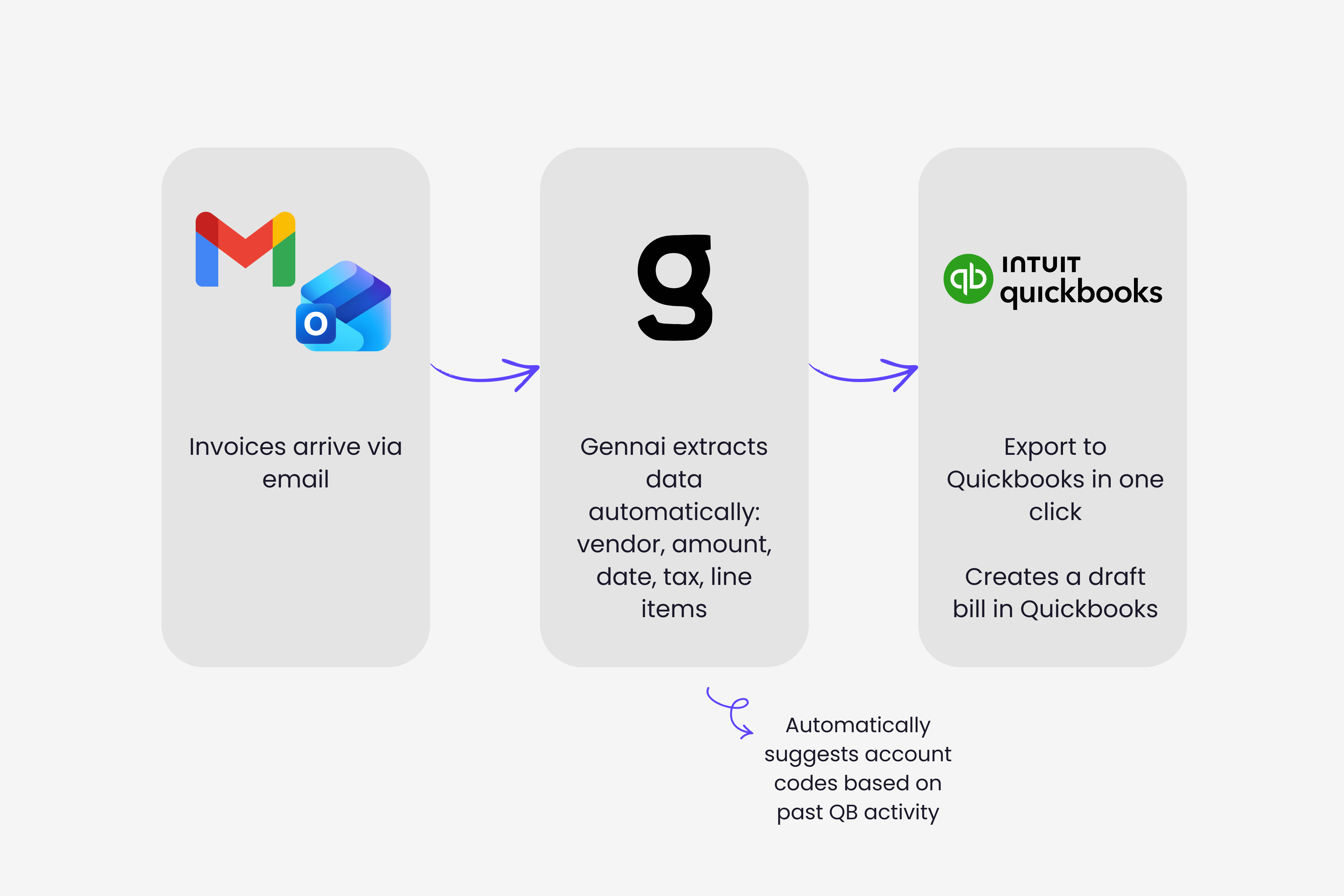
The workflow Gennai runs in production looks nothing like a forwarding rule. It is closer to giving QuickBooks a permanent set of eyes on every mailbox your business uses.
Step 1. Connect mailboxes once, capture everything after
You authorise Gennai to read a Gmail, Outlook 365 or shared inbox via OAuth. From that moment, every incoming email with a vendor invoice attachment, a structured PDF, or an inline HTML invoice gets identified automatically. Vendor, date, amount, tax, currency and line items get pulled out, classified, and held in a dashboard for review. No forwarding. No filter rules. No re-routing through Intuit's forwarding endpoint.
If you want to see the full setup, our email invoice extraction guide walks through it end to end.
Step 2. Retroactive scan of your inbox history
The first time you connect, Gennai scans backwards across your entire mailbox. There is no time limit on how far back the scan reaches. Whether your inbox holds twelve months of invoices or seven years of them, the historical sweep recovers what is there, including invoices that never made it to your accountant. For QuickBooks, this is the difference between starting clean on the next fiscal year and starting clean on the fiscal year you are already in.
Step 3. AI extraction with account code suggestion
Each extracted invoice gets mapped to QuickBooks fields: vendor name (matched against your existing vendor list), transaction date, total amount, tax amount, currency, due date and line description. The category, where QuickBooks built-in OCR forces you to assign manually, gets suggested based on vendor history. AWS goes to your software or cloud infrastructure account because that is where the previous fifty AWS invoices went. The confidence score tells you when to trust the suggestion and when to review.
Step 4. Push to QuickBooks as a bill, not a receipt
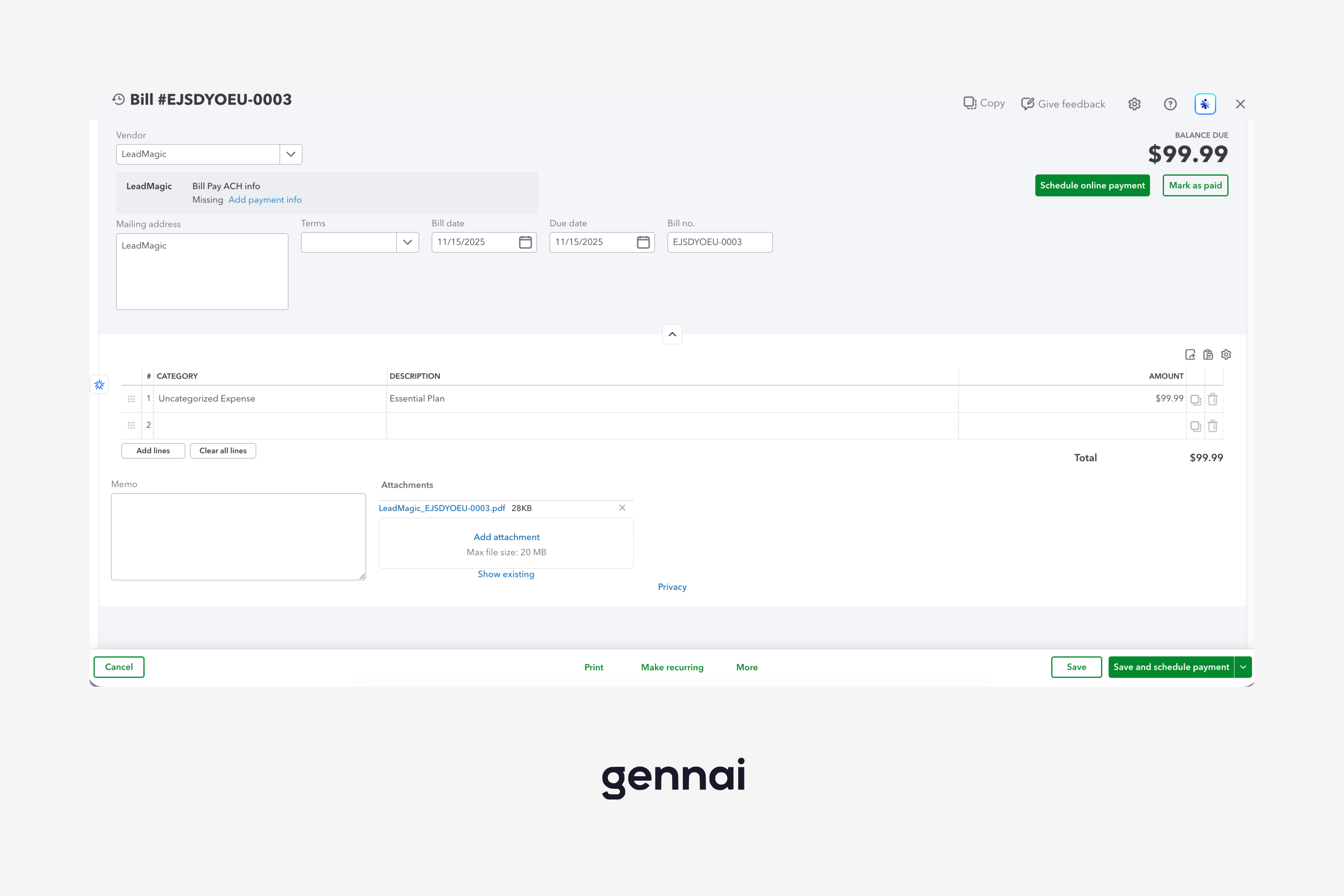
This is where built-in forwarding falls over and where a proper integration earns its place. Gennai pushes the extracted invoice into QuickBooks Online as a bill, with the vendor, account, amount and tax fields populated. Bills hit your accounts payable balance, route through your approval workflow if you have one, and show up where your accountant expects them. They do not get silently filed under Receipts. You keep control of the classification by choice, not by luck.
Built-in QuickBooks forwarding versus automatic email scanning, side by side
Five dimensions decide whether your AP can scale on QuickBooks alone or needs a capture layer in front of it.
| Dimension | QuickBooks built-in forwarding | Gennai email-first capture |
|---|---|---|
| Setup time | 5 to 10 min per inbox, per registered user | Under 2 min, one OAuth per inbox |
| Retroactive scanning | None. Each old email must be forwarded manually | Full inbox history, with no time limit on how far back the scan reaches |
| Multi-account support | One sender per user, manual auth, no shared mailbox | Unlimited inboxes, including shared mailboxes |
| Classification accuracy | Bills frequently arrive as receipts in For Review | Explicit bill / receipt tagging with confidence score |
| Manual effort per invoice | Forward the email, then verify in the queue | Zero forwarding. Review only when confidence is low |
Setting up automatic QuickBooks invoice capture with Gennai
Five steps, none of them require anything inside QuickBooks beyond a standard admin login.
1. Connect your QuickBooks Online account. Inside Gennai, go to Integrations, select QuickBooks Online, and authorise via OAuth. Gennai pulls your existing vendor list and chart of accounts so extracted invoices can be mapped to real entities, not blank strings.
2. Connect every inbox where invoices arrive. Gmail, Outlook 365, and shared mailboxes like ap@yourcompany.com. Authorise once per inbox. The retroactive scan starts immediately.
3. Review the first batch. The first 20 to 30 invoices Gennai surfaces let you confirm or correct the suggested vendor match and account code. The model learns from these corrections so future invoices from the same vendor are categorised automatically with rising confidence.
4. Switch on auto-push to QuickBooks. Set the threshold for confidence-based auto-push. A common starting point is auto-push above 95 percent confidence, hold for review below. Bills land in QuickBooks Online with vendor, date, amount, tax and account assigned.
5. Invite your accountant. Gennai's accountant portal lets your bookkeeper or external firm see every client you manage in one view, with the option to push to QuickBooks on your behalf during close. The internal target most firms run with this setup is shaving 4 to 5 days off the month-end close window.
If you are weighing this against other AP automation routes, our five-step framework for automating invoice processing covers the broader decision.
Four failure modes this fixes that QuickBooks alone won't
- The invoice that never gets forwarded. A vendor emails an invoice to a salesperson, finance never sees it, the bill arrives next month with a late fee. Email-first capture sees every inbox it is authorised on, so nothing depends on a human remembering to forward.
- The duplicate that gets paid twice. IOFM 2025 puts duplicate payments at 0.1 to 0.5 percent of mid-market invoices. An invoice sent by email and by portal is the most common trigger. Gennai fingerprints every captured invoice and flags duplicates before they hit your QuickBooks bill queue.
- The receipt that was supposed to be a bill. QuickBooks' classification is non-deterministic in this case. Email-first capture tags each document explicitly using content analysis, so cash-paid receipts go to Receipts and unpaid invoices go to Bills.
- The historical invoice that surfaced too late. A vendor reminds you that you have not paid an invoice from four months ago. Built-in forwarding never saw it. A retroactive scan finds it before the reminder does.
On duplicates specifically, the mechanics are worth a separate read. Our piece on fixing duplicate invoice detection problems covers why standard rules-based duplicate checks miss 30 to 40 percent of cases.
Who this setup is for
Three profiles get the most out of layering email-first capture on top of QuickBooks Online.
- Small finance teams processing 50 to 1,000 invoices a month. The volume where forwarding becomes a real cost but a full enterprise AP suite is too heavy. This is the sweet spot.
- Accounting firms managing 10 or more QuickBooks clients. One Gennai login, one portal, every client's invoices captured before the close period starts. The capacity gain is direct: same headcount, more clients.
- Companies with multiple inboxes generating expenses. Founder cards, sales team subscriptions, ap@ aliases, ops-related vendor accounts. The QuickBooks single-sender model breaks here. The multi-inbox model fits.
If your firm specifically handles QuickBooks alongside other ledgers, the comparison in our QuickBooks vs Xero invoice management deep dive is the cleaner side-by-side of the two ecosystems on capture and approval.
What changes inside QuickBooks once the email layer is in place
Four concrete differences your accountant will see on day one of running this setup.
- Bills appear in Expenses, Bills with vendor, account code, tax and due date pre-populated. Review becomes confirm, not type.
- Receipt forwarding stops being the main capture method. You keep it for one-off card receipts where it is genuinely fastest.
- Vendor list grows automatically as new senders are detected and matched, with duplicate vendor consolidation suggested.
- The Receipts For Review queue empties, because nothing manual is being forwarded there anymore. Reviews happen in Gennai on extracted data, then push clean bills to QuickBooks.
Frequently asked questions
Is this an Intuit-built integration?
Gennai is an independent integration that connects to QuickBooks Online via the QuickBooks API. Authorisation goes through Intuit's standard OAuth flow, the same security model used by approved QuickBooks App Store apps. Your QuickBooks data stays in your QuickBooks account.
Can I keep using the built-in forwarding address alongside this?
Yes. The two do not conflict. Most teams running email-first capture keep forwarding active for one specific use case: a personal expense receipt photographed from a phone. Everything else flows through email capture.
What about invoices QuickBooks already imported as receipts before I switched?
Those stay where they are. The retroactive scan focuses on emails QuickBooks never saw. You can use QuickBooks' built-in tools to convert historical receipts to bills if you want to clean up the back catalogue.
Does this work with QuickBooks Online outside the US?
QuickBooks Online runs as region-specific subscriptions (US, UK, Canada, Australia and others), each with their own forwarding suffix and feature set. Gennai connects to QuickBooks Online through its public API, which is available across the major QBO regions. Confirm your specific region's status during onboarding.
What about approval workflows?
Invoices captured by Gennai can hold in a review queue with approver routing before pushing to QuickBooks, or push directly as Awaiting Approval bills inside QuickBooks if your team prefers to keep approvals there. Both setups are common.
Stop forwarding receipts, start importing bills
Built-in forwarding made sense when AP was a single person clicking forward on a desktop. The volume of invoices a modern QuickBooks account has to absorb has outgrown that workflow. The fix is not abandoning QuickBooks. The fix is putting an email-first capture layer in front of it that handles every inbox, every invoice, every backfill, before any human gets involved. QuickBooks then becomes what it is supposed to be: the ledger, not the receptionist.
Connect your inbox to Gennai and watch your QuickBooks bills populate themselves. Start free or see how Gennai works.
Ready to automate your invoices?
Start extracting invoices from your email automatically with Gennai. Free plan available, no credit card required.
Start FreeRelated Articles
Auto-categorize QuickBooks invoices by supplier: how AI learns your chart of accounts
Auto-categorize QuickBooks invoices by supplier: AI applies the right account, class and location to each bill at ingestion, before it ever hits your bank feed.
GuideHow to Import Invoices to Xero From Email Automatically (2026 Guide)
Import invoices to Xero from email automatically. Skip manual forwarding and AI-extract data, account codes and taxes from Gmail or Outlook into Xero bills.
GuideQuickBooks vs Xero Invoices: Pricing & Best Fit
QuickBooks vs Xero for invoice management in 2026, compared on pricing, automation, payments, and multi-currency, with a clear pick by team size and needs.