
How to Handle Multi-Currency Invoices Automatically
Multi-currency invoices create FX variances, reconciliation gaps, and audit trail problems. Learn how automated currency detection, rate capture, and accounting sync eliminate manual conversion work.


A single vendor in Germany, a contractor in Mexico, a SaaS subscription billed in USD from Singapore. If your business works with international suppliers, multi-currency invoices are not an edge case. They are routine. And routinely, they create more work than they should.
The problem is not that the invoices are in different currencies. The problem is everything that happens next: manually converting amounts, figuring out which exchange rate to use, re-entering the converted figure into your accounting system, reconciling the discrepancy when the rate moved between invoice date and payment date, then doing it again next month. Traditional banks can quietly absorb up to 5% of a transaction's value through FX markups and wire fees, according to Wise Business. On a single $10,000 invoice, that is $500 gone before the payment clears.
Automation changes this. This guide covers exactly how multi-currency invoice handling works when it is done automatically, what can go wrong, and how to set up a system that keeps your books accurate regardless of what currency your suppliers prefer.
Why Multi-Currency Invoices Break Manual Workflows
Manual multi-currency processing fails in predictable ways. The same problems surface across businesses of every size, and they get worse as international supplier relationships grow.
The exchange rate question
When a vendor invoices you in EUR and your books are in USD, which rate do you use? The rate on the invoice date? The rate on the payment date? The rate your bank applied when the wire cleared? These are three different numbers, and the difference between them creates FX variances in your accounts payable that need explaining during a close or audit. Most accounting standards require using the spot rate on the transaction date for the initial recording, then recognizing any difference as an FX gain or loss at settlement. In practice, many teams just use whatever rate they can find quickly and hope the variance is small.
The reconciliation gap
After a multi-currency payment clears, the amount received rarely matches the invoiced amount exactly. FX fees create partial payments. Rate movements create small discrepancies. A recent Visa survey cited by Flywire found that 82% of banks globally view improved visibility as one of the most appealing features of new cross-border payment approaches, specifically because the current lack of transparency makes reconciliation so difficult. Finance teams often receive a batch of international payments with no remittance data attached, leaving them to manually match amounts to invoices.
The audit trail problem
A multi-currency invoice processed manually leaves a scattered trail: an email with the PDF, a spreadsheet with a manual conversion, a journal entry in the accounting system, and a bank transaction that may show a slightly different amount. Tying all of these together six months later is exactly the kind of work that consumes hours during an audit. As covered in the full guide on what happens to invoice data after extraction, the post-extraction lifecycle matters as much as getting the data out of the document in the first place.
How Automated Multi-Currency Handling Works
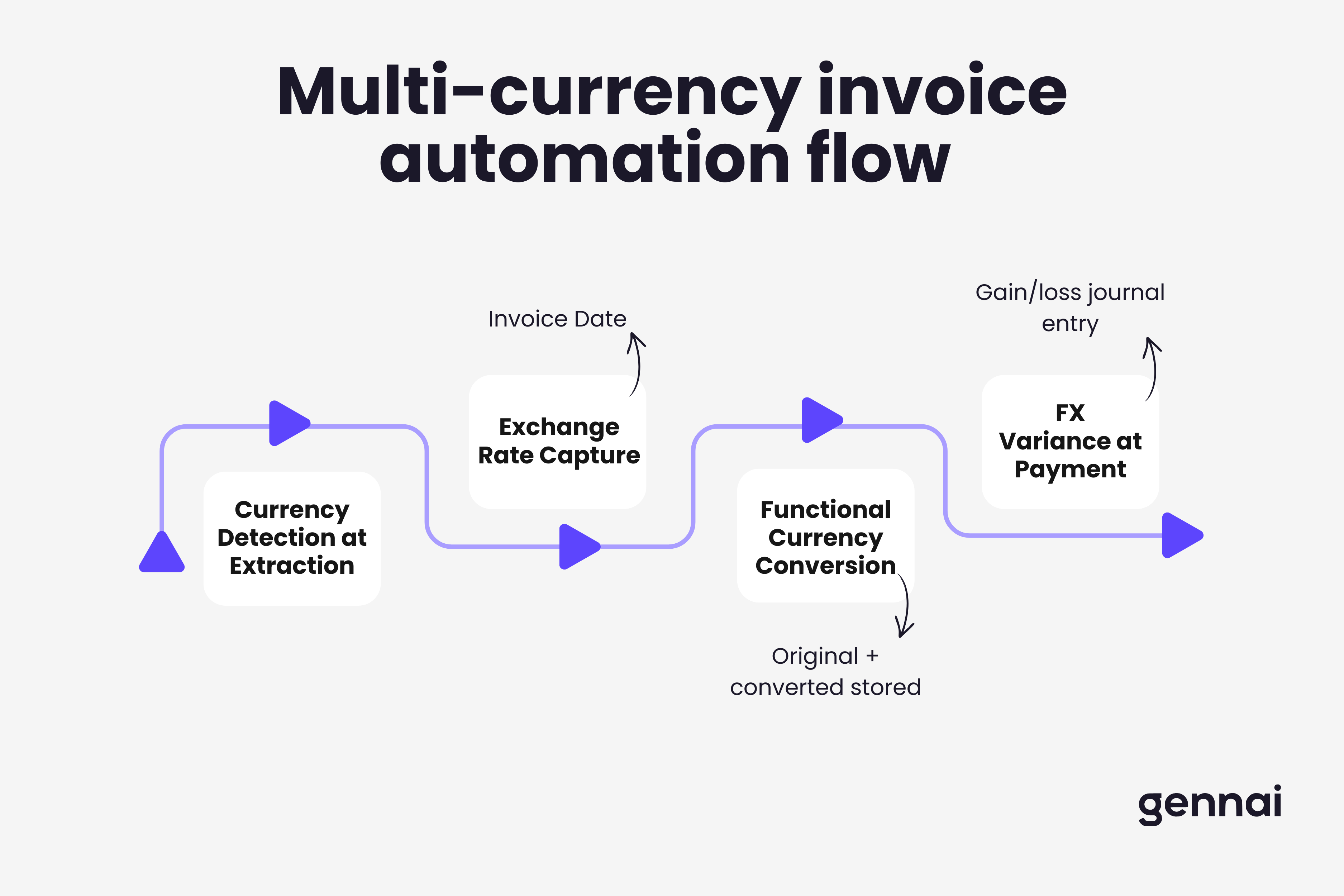
A well-designed automation system handles four distinct steps when it encounters a foreign-currency invoice. Each step removes a manual touchpoint and a potential for error. Understanding how automated multi-currency handling fits into the broader invoice processing pipeline helps clarify why each step matters.
Step 1: Currency detection at extraction
When Gennai processes an invoice from your inbox, the AI extraction identifies the invoice currency as part of the structured output, the same pass that captures vendor name, invoice number, and line items. The currency field is extracted from wherever it appears: the symbol before the total, the ISO code in the header, or the currency label next to each line item. This detection happens regardless of the invoice language. A EUR symbol on a German invoice and a JPY code on a Japanese one are recognized the same way.
Step 2: Exchange rate capture
Once the currency is identified, the system needs a rate. Well-designed tools pull the mid-market rate for the invoice date automatically via a live FX data feed. This gives you the rate your accounting entry should use (the spot rate on the transaction date) without anyone opening a separate browser tab. Some systems let you configure a preferred rate source or apply a custom rate if your finance policy requires it. The rate is logged alongside the invoice data, creating an auditable record of which rate was applied and when.
Step 3: Functional currency conversion
The system converts the invoice total, and optionally each line item, to your functional currency using the captured rate. Both figures, the original amount in the vendor's currency and the converted amount in your functional currency, are stored in the invoice record. Your accounting system receives the converted amount ready for GL coding and payment scheduling. The original currency amount is preserved for vendor communication and payment execution in the correct currency.
Step 4: FX variance recognition at payment
When payment is made, the rate used by your bank rarely matches the rate recorded on the invoice date. This difference is an FX gain or loss and needs to be recognized as a separate journal entry. A properly integrated automation system can calculate this variance automatically when it receives the payment confirmation, posting it to the correct account without manual intervention. Most accounting platforms including Xero and QuickBooks handle this natively when the original invoice is recorded in foreign currency.
Where Multi-Currency Automation Breaks Down
Even with automation in place, certain scenarios require extra attention. Knowing where the edge cases live lets you configure your system to handle them correctly rather than discovering the error during a close.
| Scenario | What Goes Wrong | How to Handle It |
|---|---|---|
| Invoice in one currency, payment in another | Vendor invoices in EUR but accepts USD. Which rate applies to which amount? | Record invoice in invoice currency. Record payment separately. Let the system calculate the realized FX difference. |
| Partial payments | Payment covers 80% of invoice. Which portion of the FX variance belongs to the partial payment? | Pro-rate the FX variance proportionally. Most accounting platforms handle this automatically if the invoice is in foreign currency. |
| Invoice with mixed currencies | Some line items in EUR, some in USD. Rare but happens with complex vendor agreements. | Extract each line item currency separately. Convert to functional currency at the line item level, not just the total. |
| Rate not available for invoice date | Weekend or holiday invoice dates may lack a published spot rate. | Use the most recent prior business day rate. Document the policy for audit purposes. |
The Accounting System Connection
None of the automation above delivers value unless it syncs cleanly to your accounting platform. For multi-currency invoices specifically, how the integration handles foreign currency settings in Xero or QuickBooks determines whether the automation reduces work or just moves the manual step later in the process.
In Xero, multi-currency support is available from the Established plan onwards. When an invoice is created in a foreign currency, Xero records it in that currency and maintains a separate converted balance in your base currency. When payment is reconciled against a bank transaction in a different currency, Xero automatically calculates and posts the realized FX gain or loss to a default exchange rate variance account. This eliminates the manual journal entry that trips up most finance teams. For teams evaluating which accounting platform handles this best, the QuickBooks vs Xero deep dive compares how each handles multi-currency workflows in detail.
For Gennai users, invoices extracted from your inbox are pushed to Xero or QuickBooks with the original currency preserved. You do not need to convert manually before the sync. The accounting platform receives the foreign currency amount and handles the conversion logic natively, including the FX variance at payment. The full flow from inbox extraction to accounting sync works the same for a EUR invoice as it does for a USD one.
Setting Up Your Multi-Currency Process
Getting this right is mostly a configuration exercise, not a technical one. These are the decisions to make before you start processing foreign currency invoices automatically.
1. Define your functional currency
This is the currency your books are kept in and the one the converted amounts will flow to. It needs to match the base currency setting in your accounting platform.
2. Enable multi-currency in your accounting system
Xero and QuickBooks both require this to be activated at the account level. Once enabled, you can create invoices, bills, and payments in foreign currencies and the platform will handle conversion and variance accounting.
3. Configure your exchange rate source
Decide whether to use the automatic rate pulled from a live feed on the invoice date, or whether your finance policy requires a specific source (e.g., your central bank's published rate). Document the decision for audit purposes.
4. Map vendor currencies
For recurring vendors, set their default currency in your accounting system. When an invoice arrives from that vendor, the system already knows to expect EUR or GBP and applies the right conversion logic without a manual prompt.
5. Establish your FX variance account
Make sure you have a dedicated account in your chart of accounts for realized and unrealized FX gains and losses. Most accounting platforms create this by default when multi-currency is enabled, but verify it is mapped correctly before you start processing.
What to Watch in Your AP Metrics
Once multi-currency invoices are flowing through an automated system, a few metrics tell you whether the setup is working correctly.
FX variance as a percentage of AP spend is the most useful signal. Small, consistent variances mean your rate capture is working correctly and the differences are just normal rate movement between invoice date and payment date. Large or inconsistent variances suggest a configuration problem: a wrong rate being applied, invoices being recorded in the wrong currency, or payment being executed in a different currency than the invoice without proper tracking.
Also watch for invoices landing in an exceptions queue because of currency detection failures. This usually means the extraction layer did not find a currency identifier on the invoice document, often because a vendor uses a non-standard format or the currency is only implied by the country context rather than explicitly stated. These cases need a vendor-level default currency setting as a fallback.
The broader principle here connects to what the accounts payable automation guide covers in detail: the metrics that matter most are not just about processing speed but about data quality at each step in the workflow. For multi-currency specifically, data quality means every invoice carries an accurate currency code and every payment reconciliation produces a clean FX variance entry.
Gennai extracts the currency field as part of every invoice it processes, preserving the original currency amount alongside all other structured data. That record syncs directly to Xero, QuickBooks, or Holded with the foreign currency intact, so your accounting platform handles the conversion and FX variance accounting natively. No manual conversion step. No spreadsheet in between.
Complexity That Does Not Need to Be Manual
Multi-currency invoicing feels complicated because it is, structurally. There are more data points per invoice, more accounting entries per payment, and more ways for a manual process to introduce errors that compound over time. None of that complexity requires manual work. Currency detection, rate capture, conversion, and FX variance recognition are all deterministic steps that software handles more reliably than a finance team doing it by hand.
The businesses that struggle with multi-currency invoices are usually the ones that added international vendors without updating their processing workflow. The fix is not complicated: configure your accounting platform for multi-currency, connect an extraction tool that preserves currency data, and let the integration handle the rest. The manual work disappears. The audit trail stays clean.
Ready to automate your invoices?
Start extracting invoices from your email automatically with Gennai. Free plan available, no credit card required.
Start FreeRelated Articles
8 Reasons Your Invoice Approval Gets Stuck
Stuck invoice approvals are structural and fixable. Here are the eight most common reasons your invoice approval gets stuck and what to do about each one.
GuideFixing Duplicate Invoice Detection Problems
Between 0.8% and 2% of invoices get paid twice. Learn why standard duplicate invoice detection fails and the practical steps to fix it.
Guide7 Automation Workflows Every Business Needs for Invoices
Discover the 7 essential invoice automation workflows that eliminate delays, prevent duplicate payments, and optimize cash flow. Implementation roadmap included.